Sigil
Playback, Files, and Export
Play, loop, export audio/MIDI, manage projects/templates, import MIDI, and use the notepad.
Playback, Files, and Export
Sigil handles playback, project management, import, export, templates, and notes inside the same workflow. Once the arrangement is working, this is where you listen back, save versions, and ship the result.
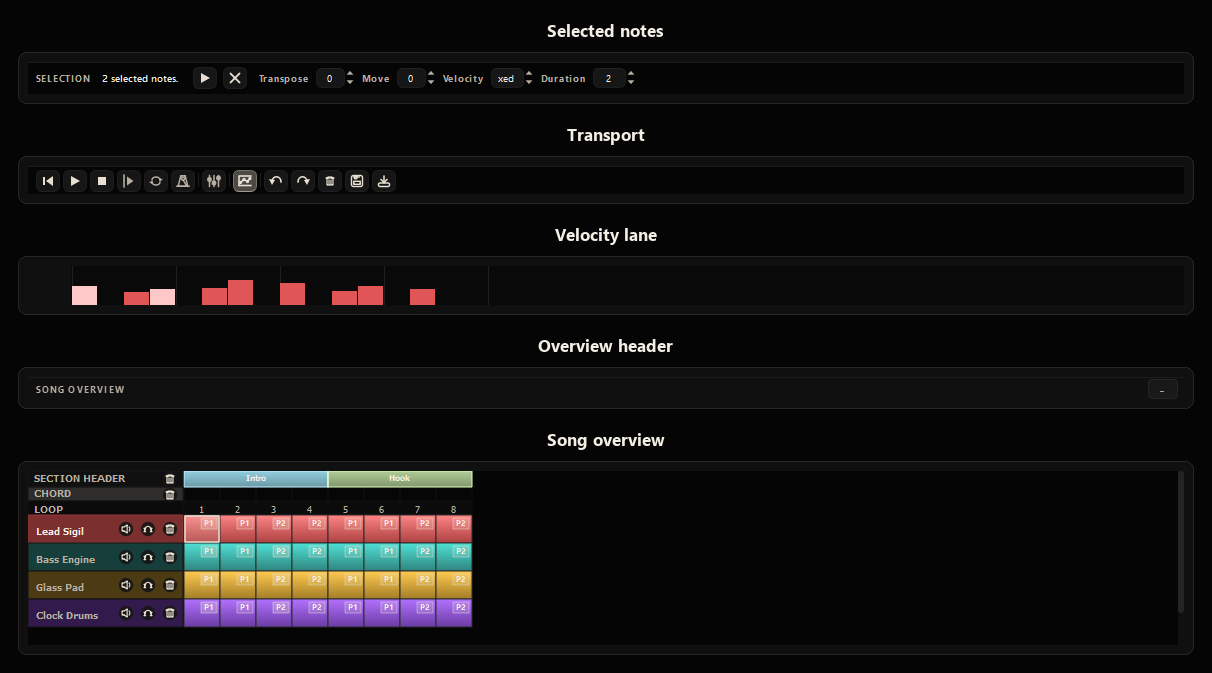 Transport bar with playback, loop, quick edit, save, and export controls
Transport controls
The transport bar runs across the bottom of the app and keeps the most-used playback and file actions close at hand.
| Control | Purpose |
|---|---|
| Previous | Returns playback to the play start position. |
| Play / Pause | Starts or pauses playback. |
| Stop | Stops playback and resets to play start. |
| Play Start | Marks where playback begins. |
| Loop | Toggles loop playback. |
| Loop From / Loop To | Sets the loop range. |
| Velocity | Shows or hides the velocity lane. |
| Undo / Redo | Steps backward or forward through edits. |
| Clear All | Removes all notes from the song while keeping track structure. |
| Save | Saves the project. |
| Export | Opens export settings. |
When notes are selected, quick edit controls appear for pitch, velocity, and duration.
Playback
Press Space or click Play to start playback. Press again to pause, or use Stop to return to the start.
Playback uses FluidSynth through the active soundfont, including effects, automation, and modulation.
When Loop is active, playback repeats between Loop From and Loop To.
Export formats
| Format | Use case |
|---|---|
| MIDI | Raw note data for DAWs or sequencers. |
| WAV | Full-quality uncompressed audio. |
| MP3 | Small compressed audio for sharing. |
| OGG | Open compressed audio format. |
| FLAC | Lossless compressed audio. |
Export settings
- Sample rate sets audio quality and file size.
- Bar from / Bar to exports a specific song range.
- Use Current Loop copies the active loop range into export fields.
- Tail adds extra time so reverb or delay is not cut off at the end.
- Normalize audio raises overall level without clipping.
- Export stems writes separate files for each track.
- Open folder after export opens the destination folder when done.
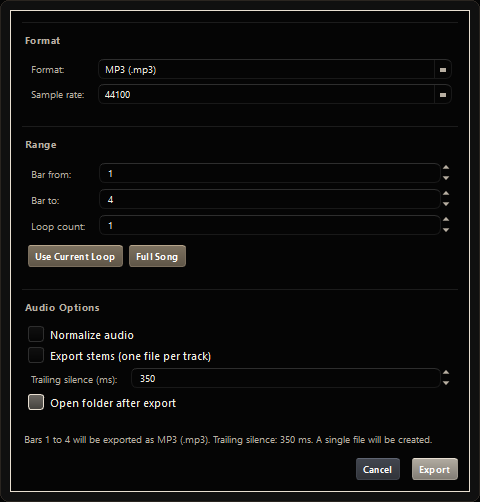 Export dialog with format, bar range, and audio options
Projects
- New Blank Project starts a fresh project.
- Save writes the current project to disk.
- Save As creates a copy under a new name.
- Load Project opens a
.sigilproject file.
An asterisk in the title bar indicates unsaved changes.
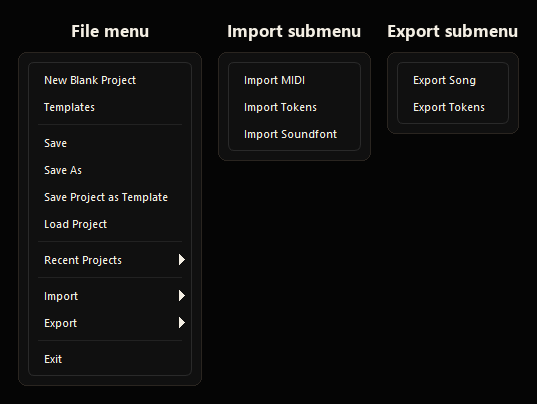 File menu with project, template, import, and export actions
Templates
Templates store reusable project structures such as track layouts, instruments, and project settings.
Use File > Templates to choose a template. Use File > Save Project as Template to save the current setup as a reusable starting point.
Import and export utilities
- Import MIDI converts a
.midfile into Sigil tracks and patterns. - Import Soundfont adds a
.sf2soundfont to the library.
Imported MIDI usually needs cleanup afterward. Program assignments, track names, and pattern organization often need a manual pass.
Notepad
The Notepad is a rich-text writing space saved inside the project, so production notes can travel with the song instead of living in a separate file.
Use it for:
- Arrangement plans.
- Lyrics or melody fragments.
- Sound direction notes.
- Cleanup checklists.
- Collaboration notes.
Use Export Notes to save a plain text copy.
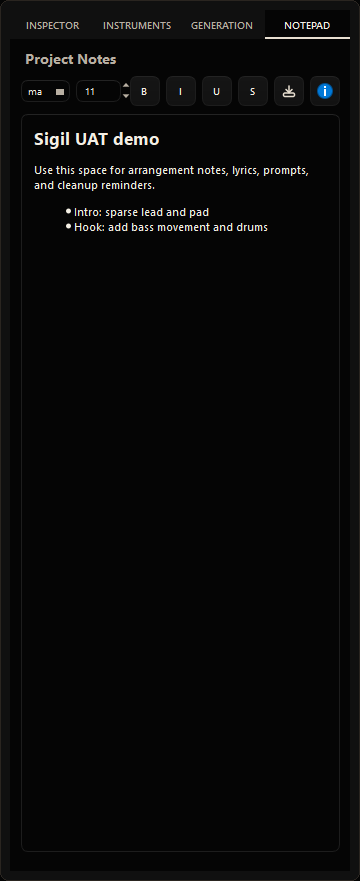 Project notepad for lyrics, plans, and production notes