Sigil
AI Generation
Generate, fill, continue, condition, tune sampler settings, and use generation history.
AI Generation
The Generation tab turns your project setup, track identity, and existing musical context into new MIDI material. It can write from scratch, fill empty ranges, or continue from bars that already exist.
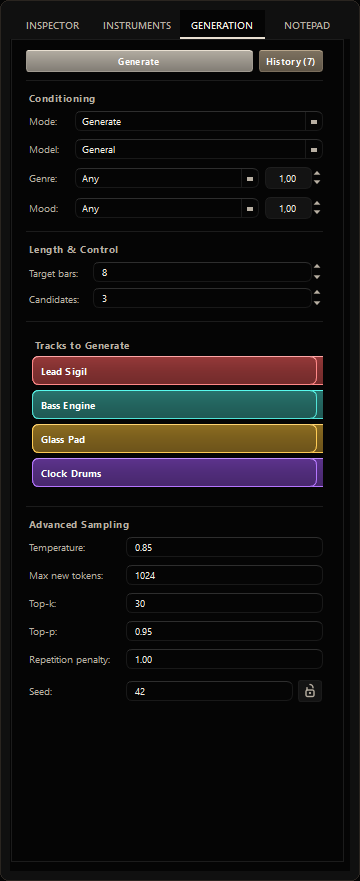 Generation tab with targeting, conditioning, and sampler controls
Generation modes
| Mode | Use it for |
|---|---|
| Generate | Create new content from scratch for selected tracks and bars. |
| Fill Track | Generate only into empty target ranges while preserving existing notes. |
| Continue | Read an existing context range and append new bars after it. |
Use Generate for first drafts, Fill Track for missing parts, and Continue when you already like the direction of a section and want more of it.
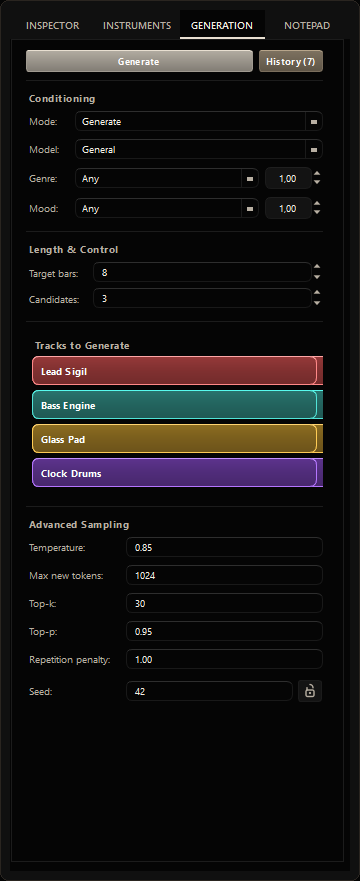 Generate mode settings
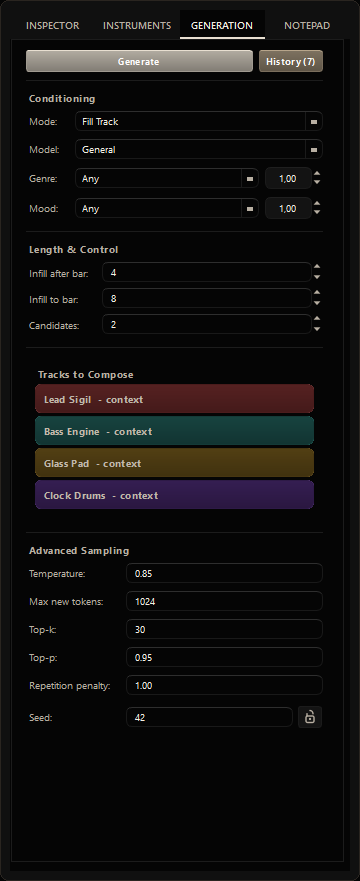 Fill Track mode settings
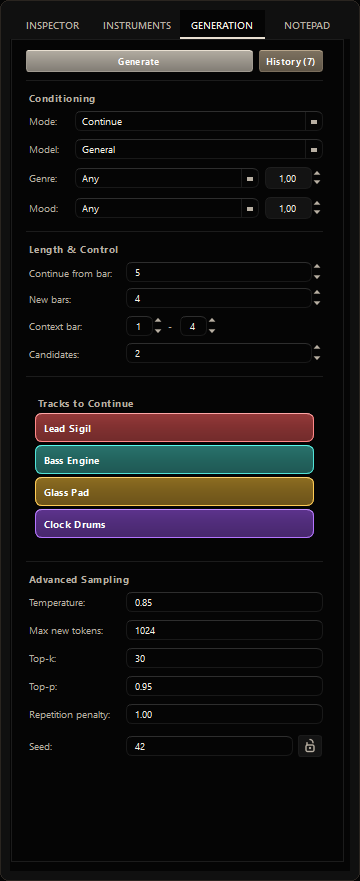 Continue mode settings
Conditioning
| Control | Purpose |
|---|---|
| Genre | Choose a trained genre tag, or leave on Any. |
| Mood | Choose a trained mood tag, or leave on Any. |
| Genre strength | Controls how strongly genre steers output. |
| Mood strength | Controls how strongly mood steers output. |
Project tempo, meter, instrument setup, track names, and any existing MIDI context also steer the result.
Targeting
The track checklist controls which tracks the model writes into.
- Ticked tracks receive generated notes.
- Unticked tracks can still provide context if they already contain notes.
- For Fill Track, target ranges must be empty on the target track.
Advanced polyphony and note-length controls shape the density of the result. Infill density is especially useful when generating drums.
Length and candidates
- Target bars sets how many bars to generate.
- Context bar selects the source range for Continue mode.
- New bars sets how much fresh material Continue mode appends.
- Candidates generates multiple alternatives so you can audition and choose the strongest result.
Sampling parameters
| Setting | Effect |
|---|---|
| Temperature | Higher values are more varied; lower values are more conservative. |
| Max new tokens | Generation budget for newly written material. |
| Top-k | Restricts choices to the K most likely next tokens. |
| Top-p | Uses nucleus sampling; lower values reduce variety. |
| Repetition penalty | Discourages looping or repeated token patterns. |
| Infill density | Controls density for native infill, strongest on drums. |
| Polyphony limit | Caps harmonic thickness. |
| Min / Max polyphony | Controls melodic arrangement density. |
| Min / Max note length | Controls duration bands. |
| Infill span | Controls how many bars native infill rewrites at once. |
| Seed | Reproducibility value. Lock it to repeat a run. |
Start near temperature 0.9, then adjust after listening rather than guessing up front.
Generation history
Every generation run is saved to history with a preview audio file and setup details.
Use History to:
- Audition previous results.
- Import an earlier result into the current project.
- Compare different settings.
- Recover a result you liked but did not apply.
Import can replace the source bars or create new tracks, and it restores the saved timing and key snapshot before applying the notes.
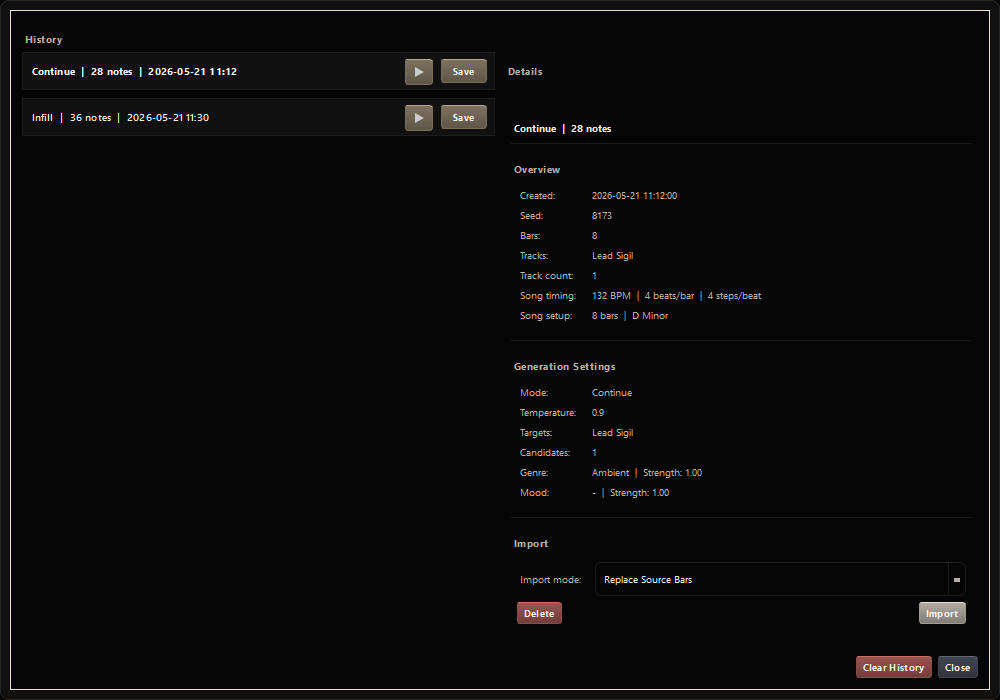 Generation history with previews, settings snapshots, and import actions
Candidate picker
When Candidates is greater than 1, Sigil opens a picker after generation.
Audition each candidate, pick the one with the strongest musical idea, and apply it. If none of them land, close the picker, adjust the settings, and generate again.
Better results
- Pick genre and mood tags that match the target style.
- Keep early generations short, usually 4-8 bars.
- Use Continue mode to extend ideas instead of generating a whole song at once.
- Add at least one existing track or pattern when you want the model to respond to material that is already working.
- Increase repetition penalty slightly if output loops too much.
- Lower temperature if output becomes chaotic.
- Always review and clean up generated notes manually.