Sigil
Settings and Shortcuts
Configure audio, playback, generation, recovery, theme appearance, soundfonts, and keyboard shortcuts.
Settings and Shortcuts
Preferences control app-wide behavior, and shortcuts remove a lot of repetitive friction from project, playback, editing, and generation work.
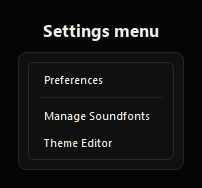 Settings menu with preferences, soundfonts, and theme tools
Preferences
Open Preferences from Settings > Preferences or press Ctrl+,.
Audio
- Live sample rate sets the sample rate used by live processed playback.
- Live buffer controls playback buffering. Smaller buffers reduce latency but can cause glitches on slower machines.
- Requested latency asks the audio device for a very low, low, balanced, or stable output latency target.
Playback and preview
- Preview note length sets how long quick note auditions play.
- Preview velocity sets the default loudness for quick note auditions.
- Follow playback bar in piano roll keeps the editor focused on the current playback bar.
- Metronome sound chooses the click sound used by the transport metronome.
Editing
- Undo levels controls how many undo and redo states Sigil keeps in memory.
- Edit Shortcuts opens the shortcut editor for step-record keys and main app shortcuts.
Generation
- Inference device chooses CPU or GPU for the AI model. GPU is faster when available.
- History items controls how many generation and candidate results are retained.
- Allow incomplete generations keeps the best partial result when a generation misses requested bar or track coverage. When disabled, under-covered generations are rejected and Sigil offers a retry.
Recovery
- Auto-save interval controls how often Sigil refreshes the recovery snapshot after edits.
Utilities
- Clear recent projects removes recent files from the File menu.
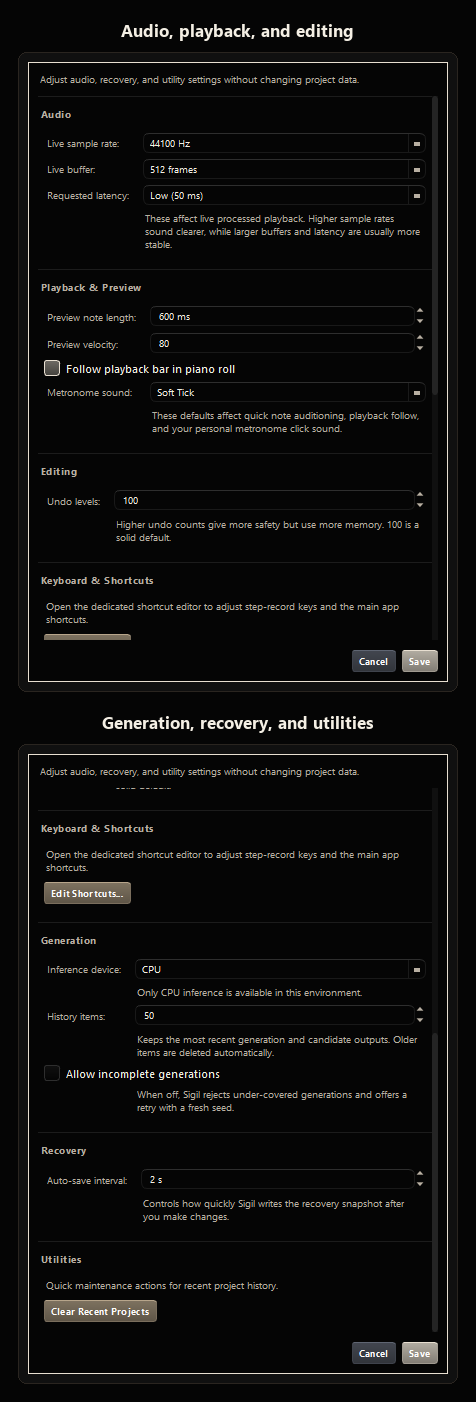 Preferences dialog for audio, playback, generation, and recovery settings
Theme and appearance
Open the Theme Editor from Settings > Theme Editor.
Theme presets change colors and fonts without affecting project content. Presets include options such as Midnight, Cyber, Nasa, Retro Light, and Retro Dark.
You can edit individual colors for backgrounds, surfaces, text, dim text, accents, button states, and borders. Strong text-to-background contrast gives the most readable result.
Saved custom themes remain available on the same machine.
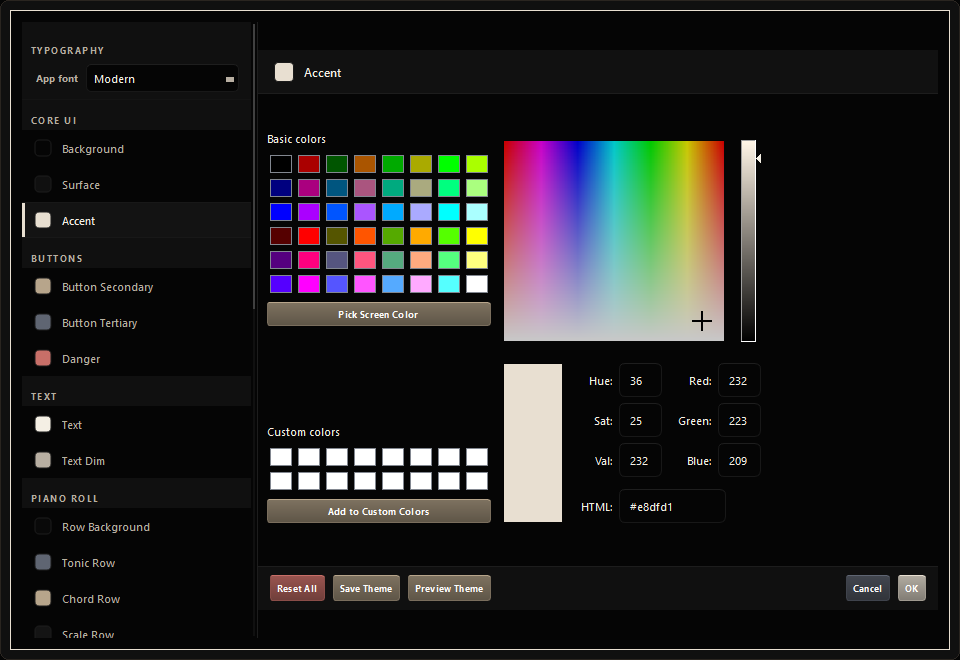 Theme editor with presets and custom color controls
Soundfont management
Use Settings > Manage Soundfonts to view imported soundfonts, inspect their details, and remove the ones you no longer need.
Built-in soundfonts are shown for reference but cannot be removed.
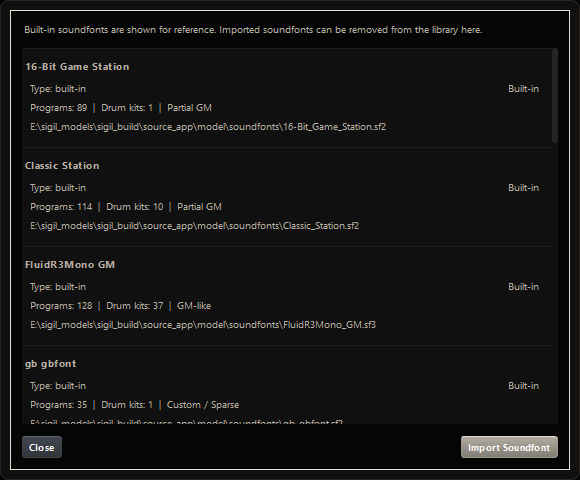 Soundfont manager for imported libraries and built-in references
Help and shortcut reference
Use Help > Help & Reference or press F1 to open the in-app guide and reference pages while you work. The Help menu also includes log viewer, log folder, and About actions for troubleshooting.
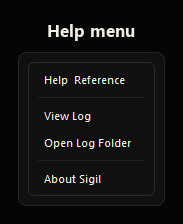 Help menu with access to the in-app reference
Project and file shortcuts
| Shortcut | Action |
|---|---|
| Ctrl+N | New blank project |
| Ctrl+O | Load project |
| Ctrl+S | Save project |
| Ctrl+Shift+S | Save project as |
| Ctrl+, | Open Preferences |
| F1 | Open Help & Reference |
Playback and transport shortcuts
| Shortcut | Action |
|---|---|
| Space | Play or stop |
| Ctrl+Home | Go to start |
| [ | Previous bar |
| ] | Next bar |
| Ctrl+L | Toggle loop playback |
| Ctrl+M | Toggle metronome |
Editing shortcuts
| Shortcut | Action |
|---|---|
| Ctrl+Z | Undo |
| Ctrl+Y | Redo |
| Ctrl+A | Select all notes in current pattern |
| Ctrl+C | Copy selected notes |
| Ctrl+V | Paste notes |
| Delete | Delete selected notes |
| Ctrl+Shift+M | Toggle marquee selection tool |
| Esc | Disable marquee selection tool |
| Ctrl+Shift+Del | Clear the whole song |
Generation shortcut
| Shortcut | Action |
|---|---|
| Ctrl+G | Run generation with current settings |
The shortcut editor also includes step-record keys for piano roll entry, octave up/down, and step left/right.
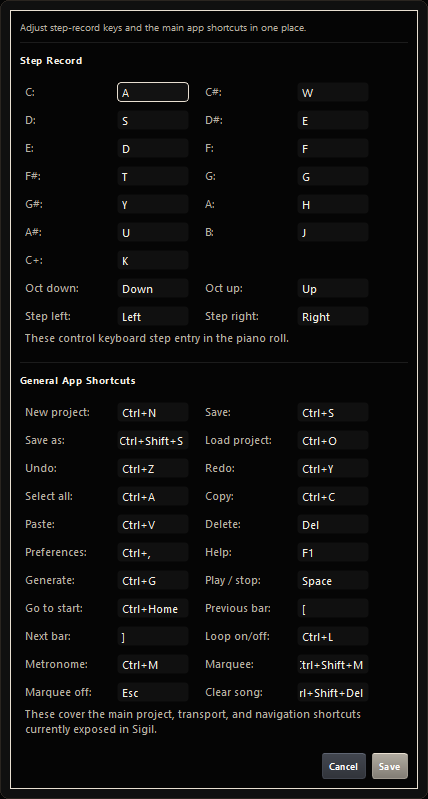 Shortcut reference dialog