Sigil
Editing Workflow
Use the piano roll, velocity lane, song overview, pattern reuse, and pattern tools.
Editing Workflow
Sigil editing revolves around three connected views: the Song Overview for arrangement, the Piano Roll for note placement, and the Velocity Lane for dynamics. Most day-to-day writing and cleanup happens across those three areas.
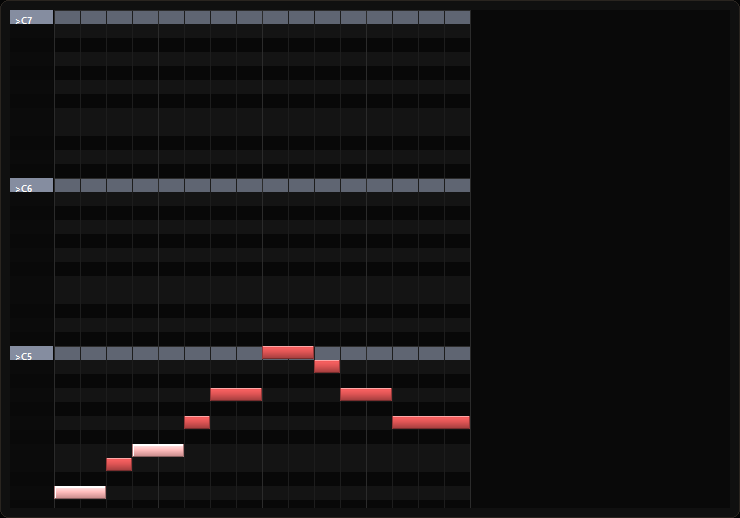 Piano roll and velocity lane editing workflow
Selecting a pattern
The piano roll always shows the pattern from the selected Song Overview cell.
- Click a filled cell to edit its notes.
- Click an empty cell to create or edit a blank pattern.
- Reused patterns stay linked across multiple cells until you make a unique copy.
Drawing and erasing notes
- Left-click an empty piano roll position to create a note.
- Drag right while creating a note to set its duration.
- Drag an existing note to move it.
- Drag the right edge of a note to resize it.
- Right-click a note to erase it.
- Right-click and drag across notes to erase multiple notes.
Notes snap to the current grid resolution.
Auditioning notes
Click and hold a note to hear it through the active soundfont without starting transport playback. Release the mouse to stop preview.
This is useful for checking pitch and register without interrupting the edit flow.
Selection and marquee mode
Use the Marquee button or shortcut to switch from draw mode to selection mode.
- Drag a box to select notes.
- Use Ctrl+A to select all notes in the current pattern.
- Hold Shift and click notes to add or remove them from the selection.
- Right-click in marquee mode for copy, paste, and delete actions.
When notes are selected, quick edit controls appear in the transport bar so you can adjust pitch, velocity, and duration without opening extra panels.
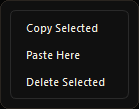 Piano roll selection and right-click actions
Scale highlighting
When key and scale are set, the piano roll highlights in-scale notes.
If Highlight out-of-scale notes is enabled, notes outside the scale are visually distinct. If Snap note entry to scale is enabled, new notes are forced to the nearest in-scale pitch.
Velocity lane
The velocity lane appears below the piano roll and shows one vertical bar per note.
- Taller bars mean higher velocity.
- Shorter bars mean softer notes.
- Click or drag a bar to change note velocity.
Use velocity variation to keep repeated patterns from feeling flat or robotic.
Song Overview
The Song Overview is the arrangement map for the whole song.
- Rows are tracks.
- Columns are bars.
- Filled cells contain notes.
- Empty cells are silent for that track and bar.
- Shared pattern cells show reused musical material.
Right-clicking a cell opens pattern management and pattern tool actions.
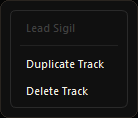 Song overview track actions and arrangement controls
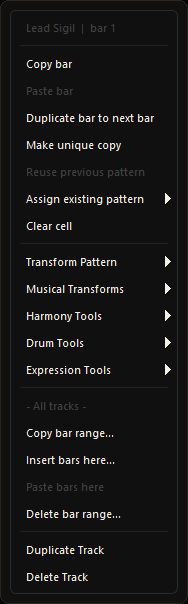 Song overview cell menu for copy, reuse, and pattern actions
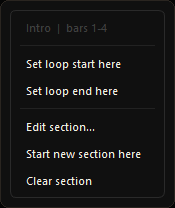 Song overview header actions and global grid controls
Pattern reuse
| Action | Purpose |
|---|---|
| Copy bar | Copies the current cell pattern. |
| Paste bar | Applies copied content to another cell. |
| Duplicate bar to next bar | Copies the current cell to the next bar. |
| Make unique copy | Breaks a reused pattern into an independent copy. |
| Reuse previous pattern | Links the cell to the pattern on its left. |
| Assign existing pattern | Lets you pick from existing project patterns. |
| Clear cell | Removes notes from the cell pattern. |
Pattern tools
Pattern Tools apply musical operations to a whole cell pattern. Treat them as fast drafting and cleanup tools, and use Undo freely when a result is not serving the part.
Transform tools
- Simplify reduces note density.
- Densify adds more notes.
- Octave Up Variant and Octave Down Variant shift the pattern by an octave.
- Rhythm Shift Left and Rhythm Shift Right move timing earlier or later.
- Apply Groove bakes the project groove into actual note timing.
- Humanize Timing, Humanize Velocity, and Humanize Length add performance variation.
Musical tools
- Syncopate adds off-beat rhythmic emphasis.
- Fit Pattern To Scale moves notes into the active scale.
- Clamp To Instrument Range keeps notes within a playable range.
- Scale Step Up and Scale Step Down transpose by scale degree.
Harmony tools
- Fit Pattern To Chord aligns notes with the assigned bar chord.
- Add Chord Tones adds supporting harmony.
- Bass Follow Chord Root aligns bass notes with chord roots.
- Arpeggiate spreads chord tones over time.
- Strum Chord offsets chord notes slightly.
- Invert Up and Invert Down rotate chord voicings.
- Open Voicing spreads notes apart.
- Close Voicing compresses notes into a tighter voicing.
Drum and expression tools
- Add Hi-Hats adds a simple hi-hat pulse.
- Add End Fill writes a short transition fill.
- Simplify Kick / Snare removes redundant drum hits.
- Tighten Groove snaps drum timing toward the grid.
- Accent Downbeats increases beat-one emphasis.
- Soften Offbeats reduces offbeat velocity.
- Staccato shortens notes.
- Legato lengthens notes.
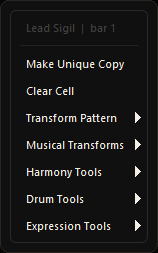 Pattern tools menu from the song overview
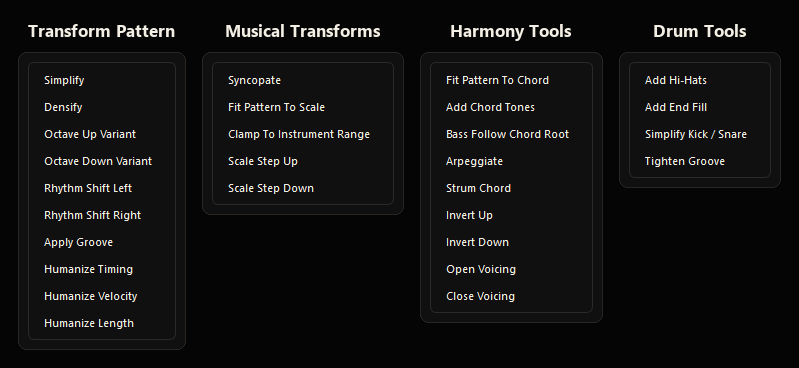 Pattern tool groups: transform, musical, harmony, drum, and expression