Sigil
Sigil Overview
Start here for Sigil's core workflow, main views, and first-session setup.
Sigil Overview
Sigil is Black Magik’s local AI MIDI composition tool for retro game music. You build songs from reusable patterns, arrange bars across tracks, shape the sound with instruments and effects, and use local generation when you want fresh melodies, bass lines, harmony, drums, infill, or continuation material.
The workflow is designed for music you own and can finish: set the musical rules, build the track list, sketch the arrangement, generate where useful, edit every result in the piano roll, preview loops with SoundFont playback, then export game-ready MIDI or audio.
Main Areas
| Area | Purpose |
|---|---|
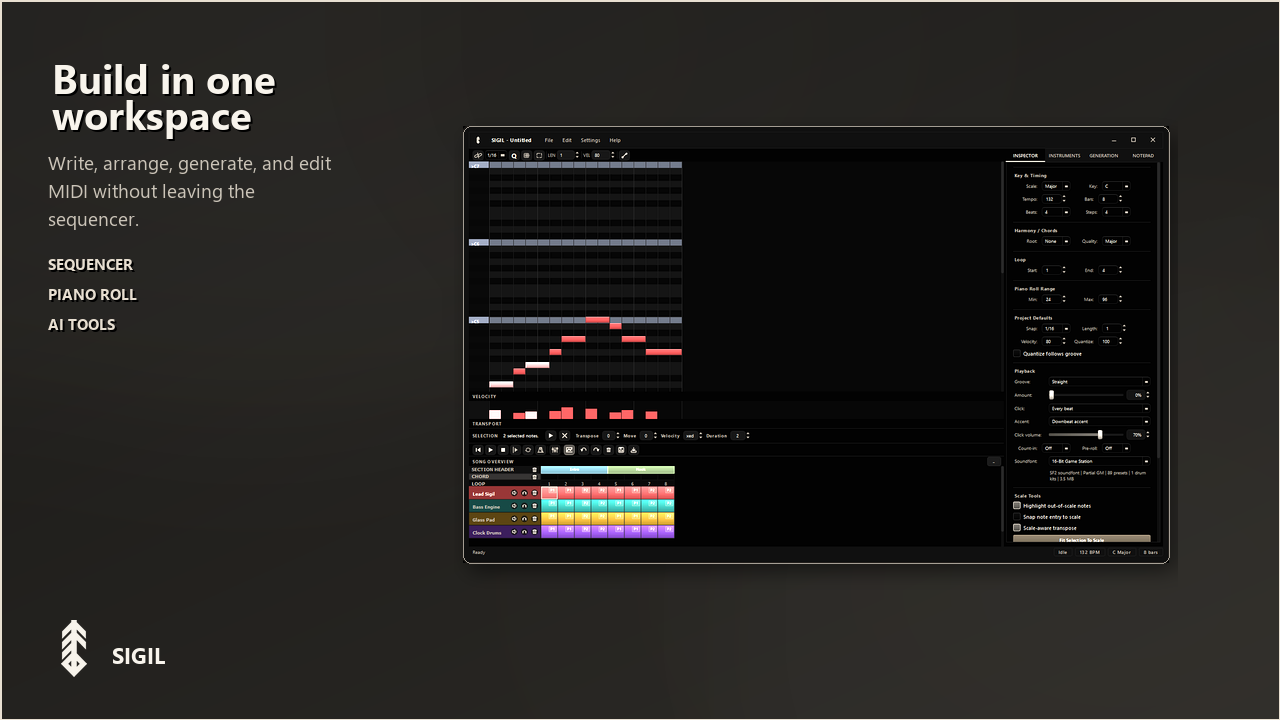
| Song Overview | Arrangement grid where tracks and bars are organized. |
| Piano Roll | Note editor for the selected pattern. |
| Velocity Lane | Per-note loudness and accent editing. |
| Transport Bar | Play, stop, loop, metronome, undo, save, export, marquee mode, and quick edit controls. |
| Project Tab | Key, scale, tempo, bars, loop, pitch range, groove, metronome, soundfont, and note defaults. |
| Instruments Tab | Track setup, instruments, mixer controls, per-track groove, soundfont overrides, effects, automation, and modulation. |
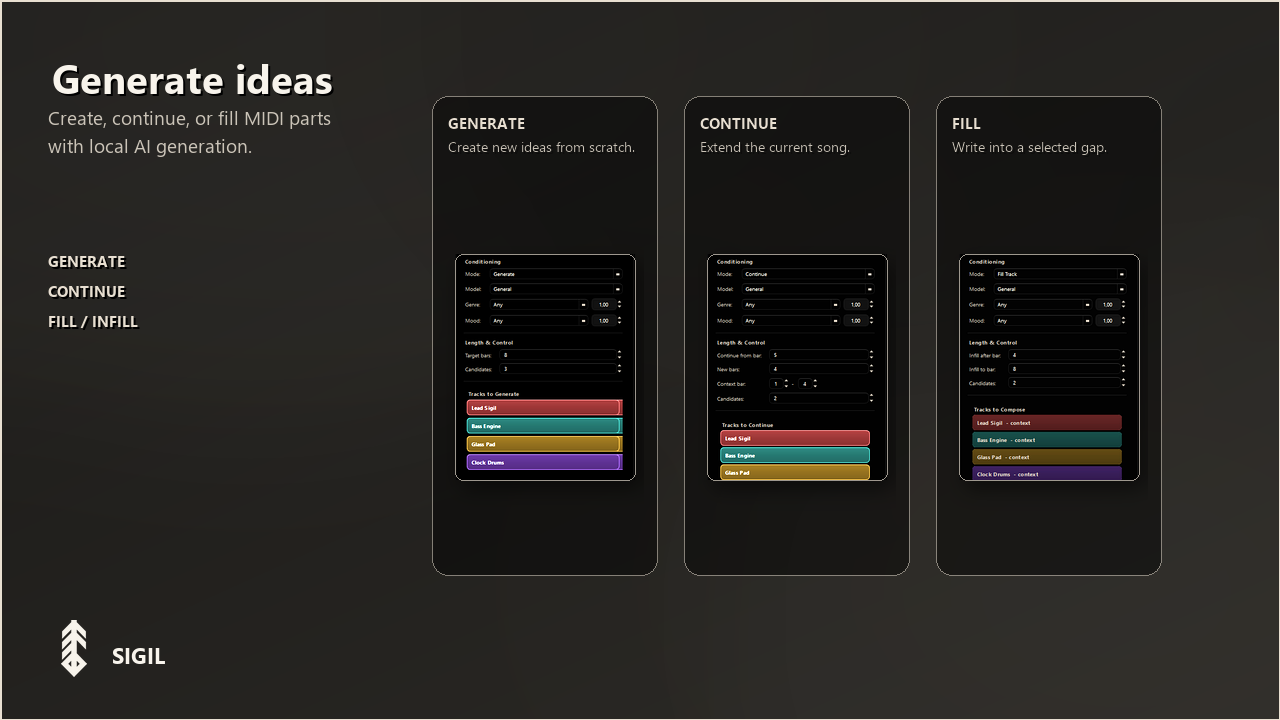
| Generation Tab | Local AI controls for generating, filling, or continuing MIDI. |
| Notepad Tab | Rich-text project notes for lyrics, arrangement plans, and reminders. |
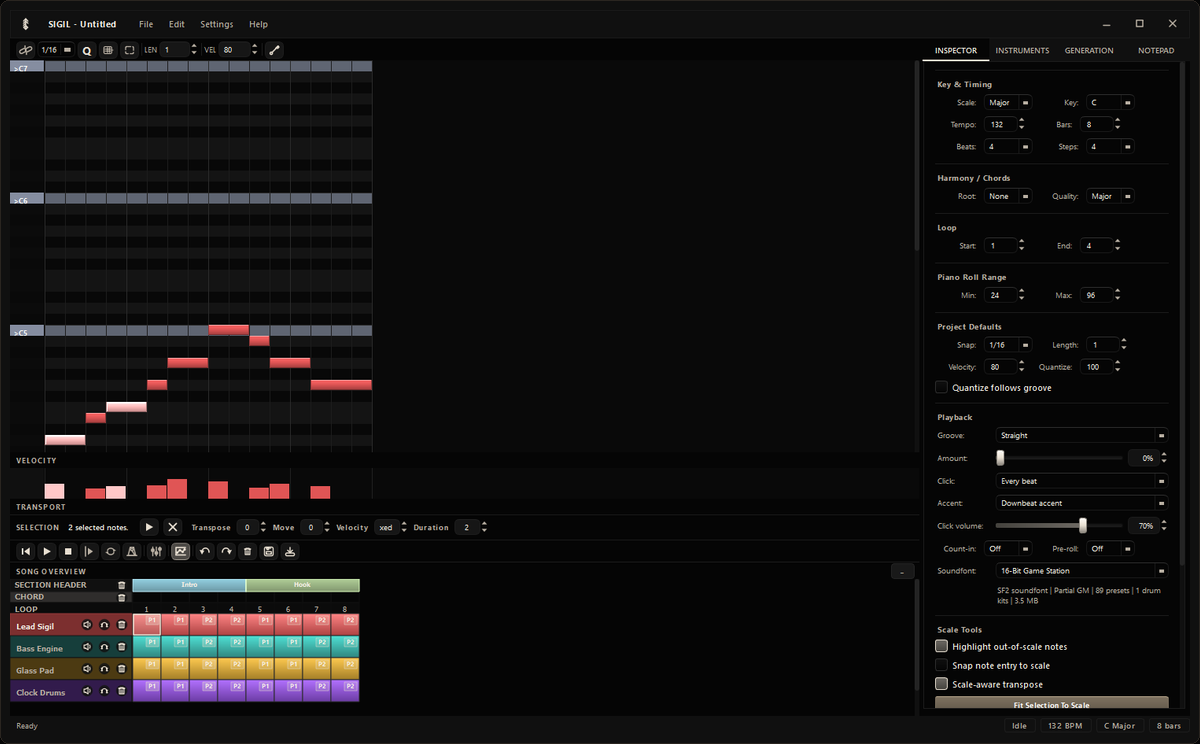 Song overview, piano roll, and side-panel workflow
First Session Checklist
- Open File > New Blank Project, or choose a template from File > Templates.
- Use the Project tab to set tempo, key, scale, time signature, and song length.
- Use the Instruments tab to add tracks, name them clearly, and choose General MIDI instruments or drum kits.
- Click a cell in the Song Overview to select a pattern.
- Draw notes in the Piano Roll.
- Press Space to play or stop.
- Use the Generation tab when you want the AI to create, fill, or continue music.
- Save with Ctrl+S and export from the transport bar when finished.
What Persists
- Project files keep the tempo, key, scale, time signature, tracks, patterns, notes, automation, effects, and notepad content.
- Reused patterns stay linked across the song until you make a unique copy.
- Generation history keeps recent AI results so you can compare takes before committing to one.
- Preferences keep audio, theme, generation, recovery, and shortcut settings between sessions.
Good Habits
- Start with a short loop, usually 4 or 8 bars, so you can iterate quickly.
- Name tracks clearly before generating. Track identity and instrument setup both feed the model useful context.
- Save a copy before large generation experiments.
- Use the Notepad for arrangement plans, sound direction, lyrics, and cleanup tasks.
- Treat AI output as draft material, then tighten timing, voicing, and dynamics manually in the piano roll.
System Requirements
| Platform | Requirements |
|---|---|
| Windows 10 / 11 (64-bit) | Currently supported. Requires a 64-bit Intel or AMD processor, 8 GB RAM minimum, 16 GB RAM recommended for larger projects and smoother local AI generation, 3 GB free disk space, and a Windows-compatible audio output device. |
| macOS | Coming soon. |
| Linux | Coming soon. |