Grimoire Standalone
AI Edit with Qwen
AI Edit uses Qwen Image 2.1 to edit the active canvas from instructions. Install its dedicated model pack and refresh models first.
AI Edit uses Qwen Image 2.1 to edit the active canvas from instructions. Install its dedicated model pack and refresh models first.
Find and open this tool
Click AI Edit in the left AI rail or the AI tab on the right.

Standard Edit
- Select AI Edit → Standard Edit.
- Write a concrete instruction, such as “change the armor to blue while preserving the pose and silhouette”, or click Prompt Builder. Choose an instruction, edit its [placeholders], then click Use Prompt. Save Prompt stores the instruction in your local AI Edit library for reuse from Prompt Builder.
- Generate and review the full result before importing. Instructions guide a model; unchanged regions are not a pixel-perfect guarantee.
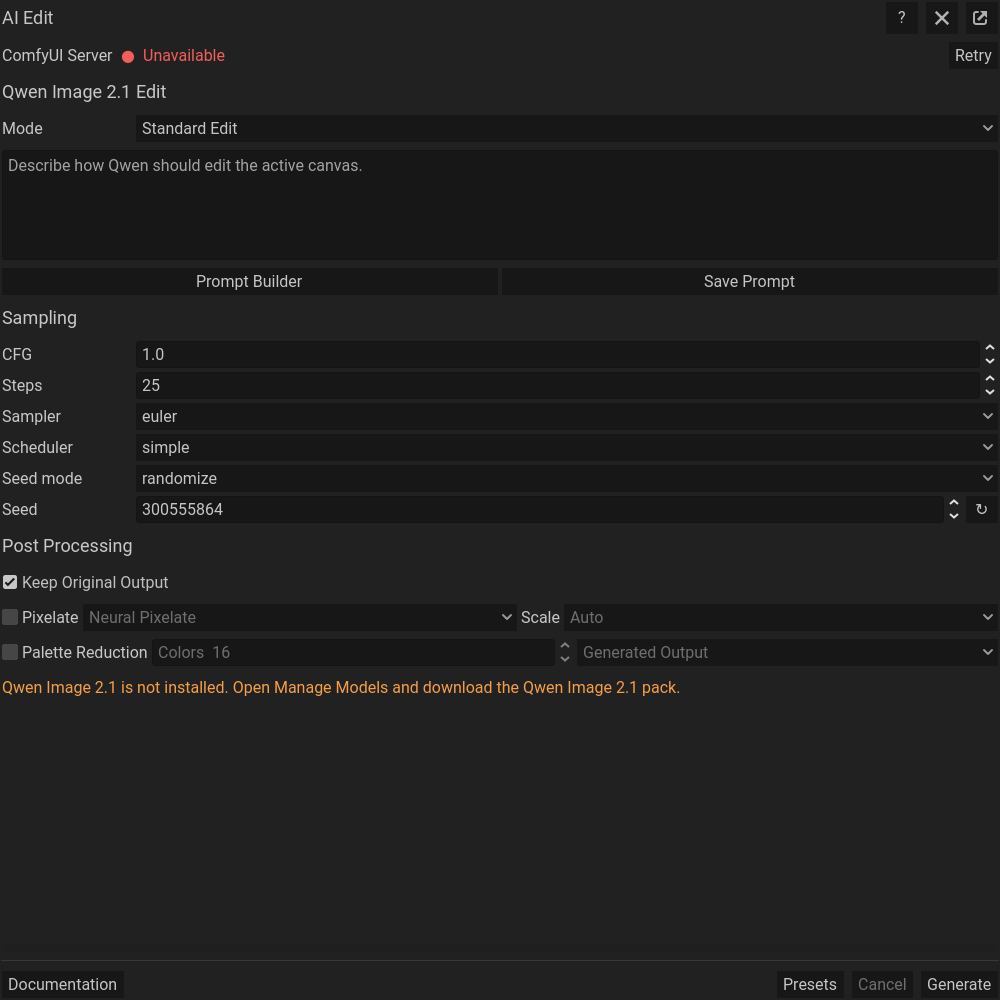 Standard Edit: the full-width Prompt Builder and Save Prompt buttons sit directly below the main prompt.
Reference Images
Image 1 is the active canvas. Add reference images through the Reference Images dock, then choose them in the edit rows for images 2–10. Describe their roles using the matching image numbers, for example “use the colors of
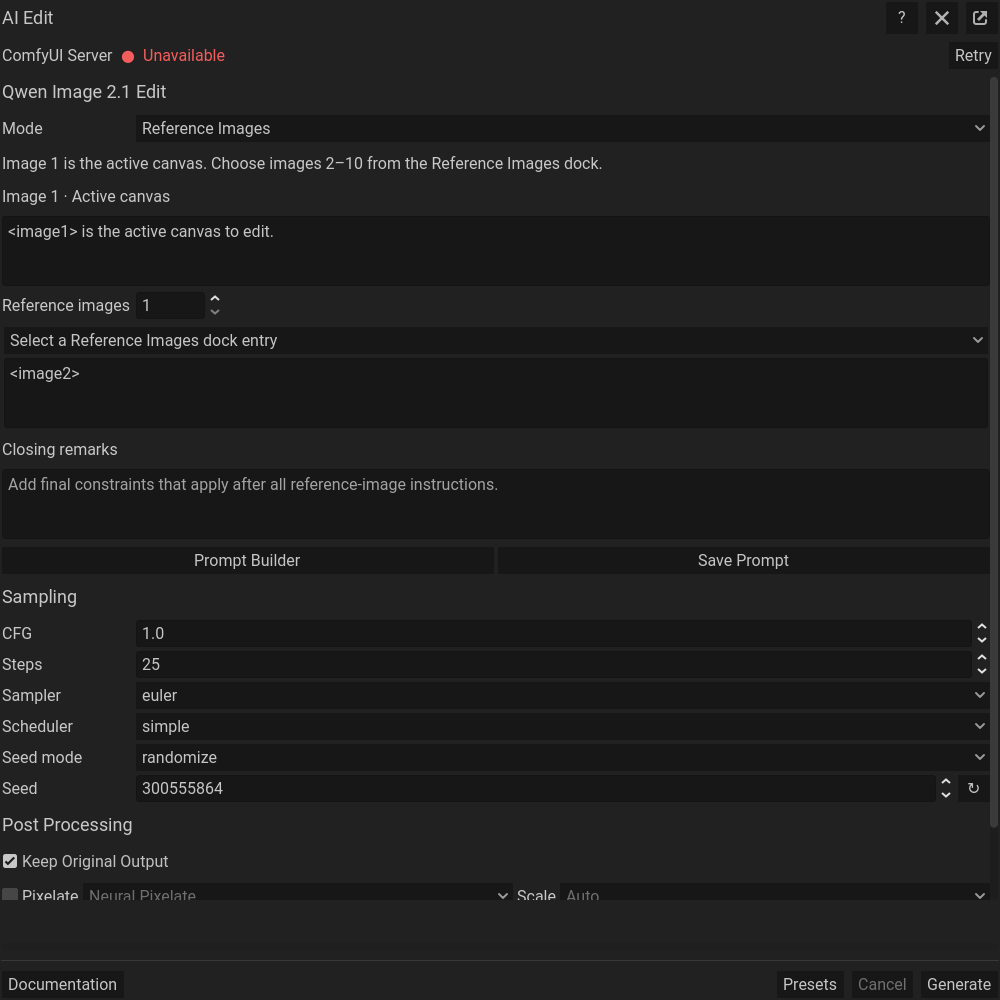 Reference Images: image-role prompts and Closing remarks above the full-width prompt buttons.
Area in Circle
Choose a marker color to activate the Pencil, draw around the area directly on the canvas, and add an instruction for each color used. Describe the change you want inside that marker; add preservation instructions only when they suit your edit. The assembled instruction asks the model to treat outlines as location markers and omit them from the result. Prompt Builder adds a reusable instruction to Closing remarks without replacing the instructions for each marker color. Save Prompt stores the closing instruction for reuse. Colored circles are model guidance, not a hard protection mask. Save/undo marker strokes as ordinary canvas edits when needed.
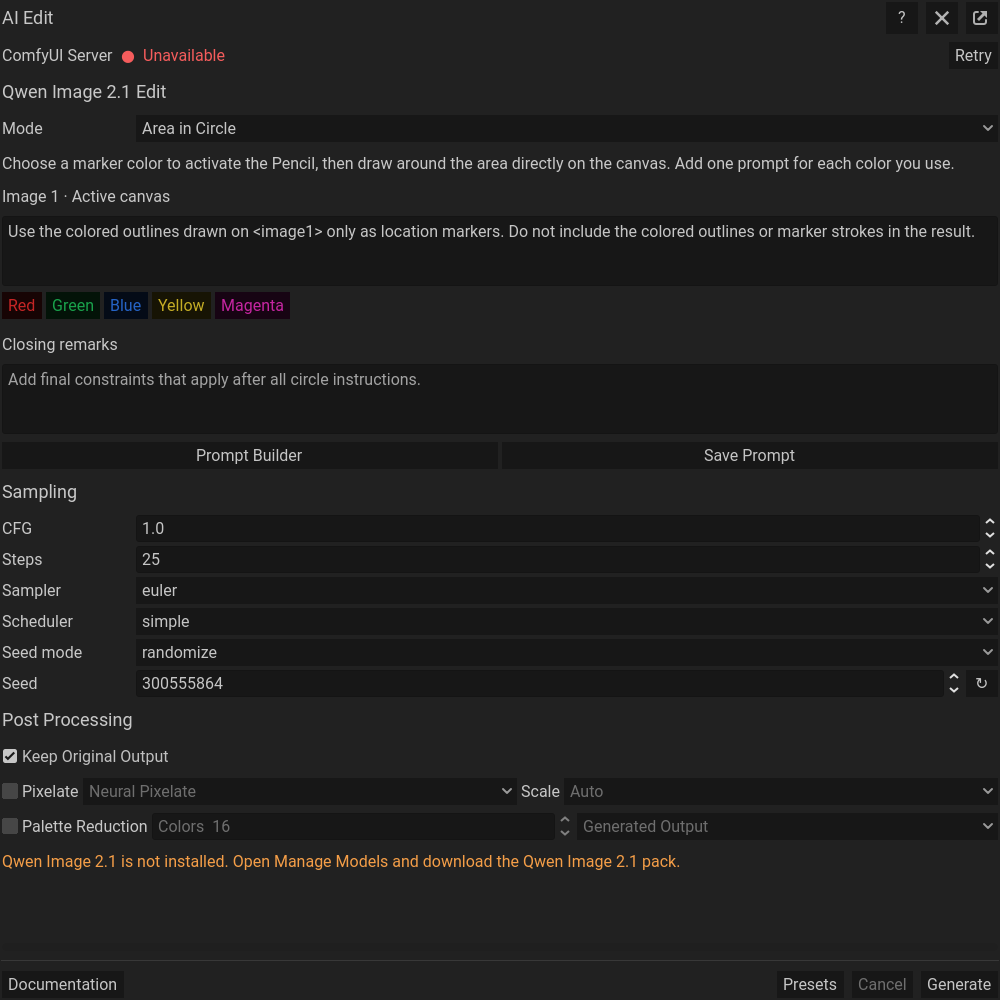 Area in Circle: marker colors and Closing remarks above the full-width prompt buttons.
Output controls
Use the displayed seed, sampler, scheduler, steps, and CFG controls.
Pixel art postprocessing
At the bottom of the workflow, enable Pixelate to simplify the edited output with Standard Pixelate or Neural Pixelate. Palette Reduction limits the colors; choose the palette source where available. Enable Keep Original Output to compare the processed version with the raw edit before Send. For more detail, see Pixel art utilities .
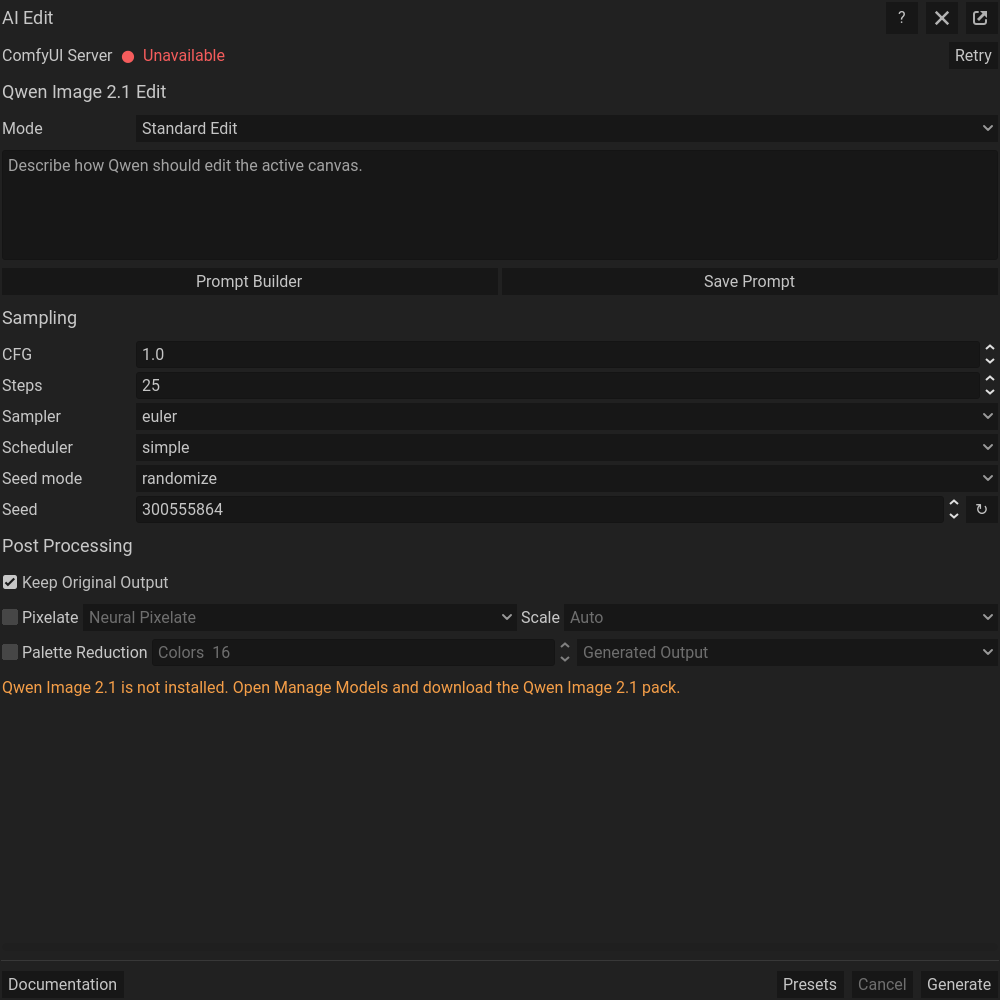 The same dialog scrolled down to its remaining settings; generation controls stay at the bottom.
Common problems
A missing Qwen pack blocks editing. Wrong reference assignments lead to wrong content. Leftover markers or changes outside a circle require reviewing and adjusting instructions, or choosing a mask-based repair workflow instead.