Grimoire Standalone
Paint Select
Paint selection coverage without painting image pixels. Use it to isolate irregular areas for transformations, healing, or inpainting.
Paint selection coverage without painting image pixels. Use it to isolate irregular areas for transformations, healing, or inpainting.
Find and open this tool
On the left tool rail, click the Color and Paint Selection group button (small corner chevron), then choose Select by Drawing from its list. The group icon changes to its last-used member, so use the name in the list rather than guessing from its current picture.

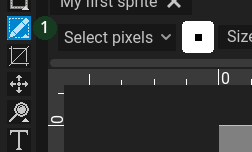 Open Color and Paint Selection and choose Select by Drawing.
Expected: this tool is active and its options appear above the canvas. Select a visible, unlocked pixel layer before painting.
 Options for Select by Drawing appear above the canvas.
Paint a repair selection
- Choose Paint Select from Color and Paint Selection.
- Choose a brush and the visible selection operation.
- Use Select pixels for free coverage or Select grid boxes for grid-aligned selection.
- Paint the intended region and inspect the selection boundary.
- Switch to a repair workflow; deselect afterward when you want unrestricted editing.
Controls and expected result
Brush tip/size control selection coverage. Add/subtract/intersect operations, when available in the selection controls, change how new coverage combines with an existing selection. The selection can constrain later drawing; it is not an alpha edit or a deleted background.
Common problems
Unexpectedly large blocks: check grid-box mode and grid settings. A later brush appears ineffective: check the current selection. Inpainting targets should be checked again in the source/mask preview.