Grimoire Standalone
Text to Image
Create an image from a prompt without requiring an input image.
Create an image from a prompt without requiring an input image.
Find and open this tool
Click Text to Image in the left AI rail or the AI tab on the right.

Generate a sprite
- Choose Text to Image and a compatible model/loading method.
- Describe the subject, pose, view, background, and pixel art treatment. Example: “one pixel art knight, front view, idle pose, centered, limited palette, clean silhouette”.
- Choose dimensions suitable for the model. Generation resolution and final sprite resolution can differ.
- Generate, review candidates, and Send the chosen result to a Layer or New Sprite.
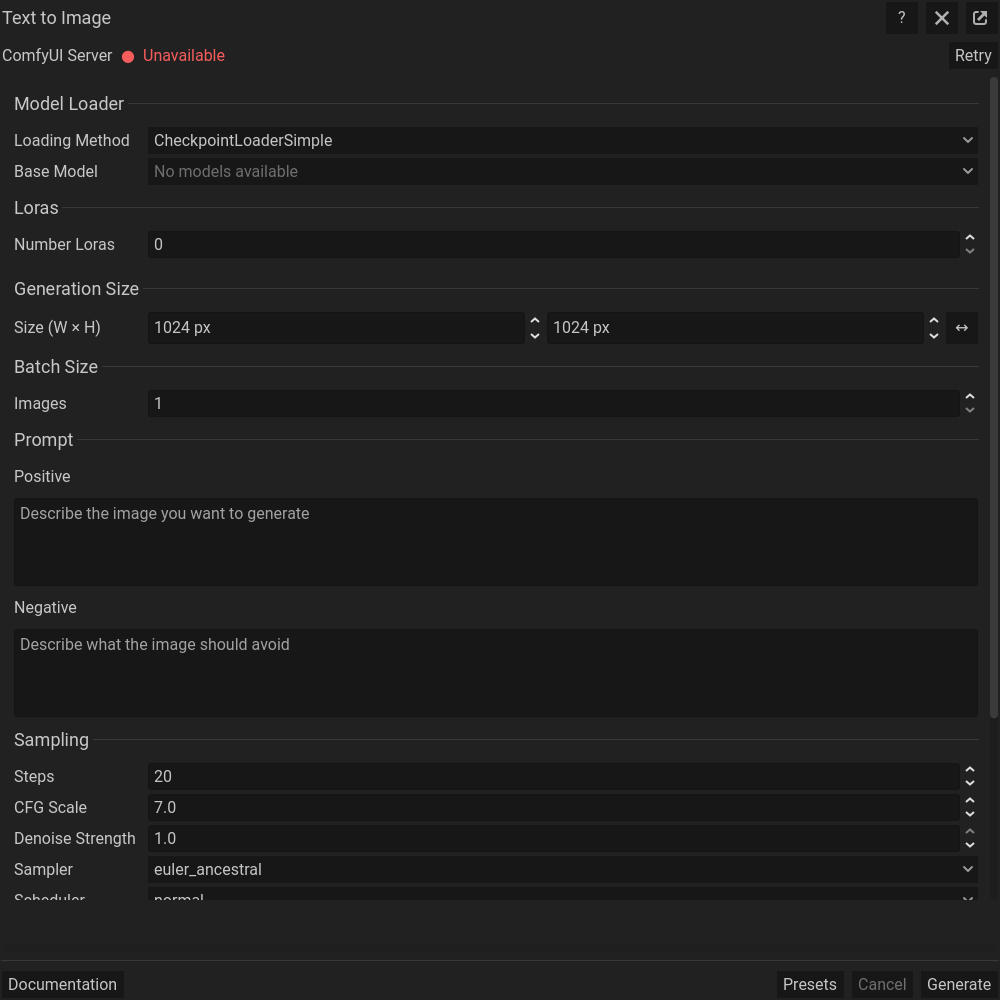 Text to Image: actual floating dialog. Scroll within the dialog for more settings.
Prompts and sampling
Positive prompts describe desired content. Negative prompts, where supported by the model, describe unwanted content. Steps control sampling work; CFG controls prompt guidance. Sampler and scheduler form a sampling combination. Start with compatible defaults and change one setting at a time; larger values do not guarantee better art.
Seeds and LoRAs
Fixed seeds help compare settings within the same pipeline; increment/decrement/randomize produce variation. Reproducibility also depends on model, backend, and settings. Add only LoRAs compatible with the base model and adjust their model/CLIP strengths deliberately.
Pixel art postprocessing
At the bottom of the workflow, Pixelate simplifies the output and Palette Reduction limits its colors. Standard Pixelate and Neural Pixelate use different processing paths. Choose Generated Output, Input/Reference, or Current Grimoire Palette where available, and keep the original output when comparing processed results.
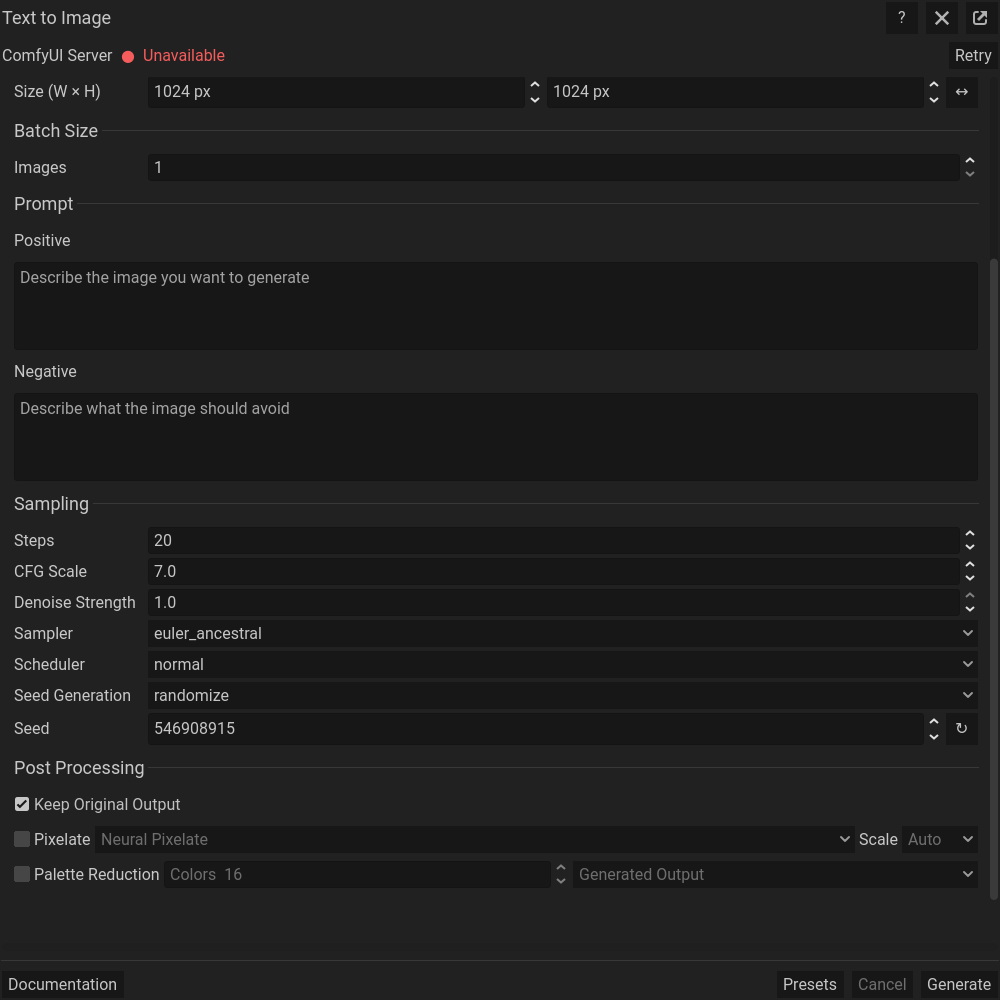 The same dialog scrolled down to its remaining settings; generation controls stay at the bottom.
Common problems
No models: finish setup and refresh. Missing nodes or incompatible components: use a matching model family. Poor clusters: try pixelation/palette cleanup before increasing sampling work. Cropped imports: inspect output-size policy.