Grimoire Standalone
Contextual Heal
Copy the structure of a sampled area while remapping its palette to the destination context. Runs locally on editable pixel layers without an AI server.
Copy the structure of a sampled area while remapping its palette to the destination context. Runs locally on editable pixel layers without an AI server.
Find and open this tool
On the left tool rail, click the Healing and Fill group button (small corner chevron), then choose Contextual Heal from its list. The group icon changes to its last-used member, so use the name in the list rather than guessing from its current picture.

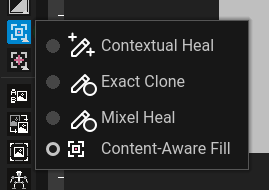 Open Healing and Fill and choose Contextual Heal.
Expected: this tool is active and its options appear above the canvas. Select a visible, unlocked pixel layer before painting.
 Options for Contextual Heal appear above the canvas.
Heal a blemish
- Open Healing and Fill and choose Contextual Heal.
- Ctrl-click a clean source point (Command-click on macOS).
- Choose Circle or Square and a size that covers the blemish.
- Drag over the destination. The source offset and contextual mapping stay fixed for the complete stroke.
- Inspect the repair and Undo if it damages intentional detail.
Controls
Protect Silhouette guards the destination silhouette. Flip X/Flip Y mirror the source mapping. Choose a nearby source with a useful texture/outline structure rather than a completely unrelated region. Source sampling is cleared when changing cels; sample again after changing frames or layers.
When to use it
Use Contextual Heal when a clean source has the texture or outline you need, but the repair needs to match the destination’s colors or shading.
Expected result
Sampled geometry is reused with destination-aware colors. For example, use a clean patch of armor to repair another patch under different shading. Contextual Heal is not a semantic object-removal model and cannot infer arbitrary missing anatomy.
Common problems
No source: sample inside the canvas. Wrong texture: resample closer to the target or reduce size. No changes: check editable layer, selection, alpha lock, and silhouette restrictions.