Grimoire Standalone
Review, history, and import
Generation output is reviewed before it enters your project. A preview result and the active canvas are separate until you Send or apply an operation.
Generation output is reviewed before it enters your project. A preview result and the active canvas are separate until you Send or apply an operation.
Find the preview and history
The AI Tools tab in the right-hand dock normally contains the preview and generated thumbnails. Click a thumbnail to inspect it, then choose a Send destination. Click the history icon below the AI launcher icons to reopen previous runs.

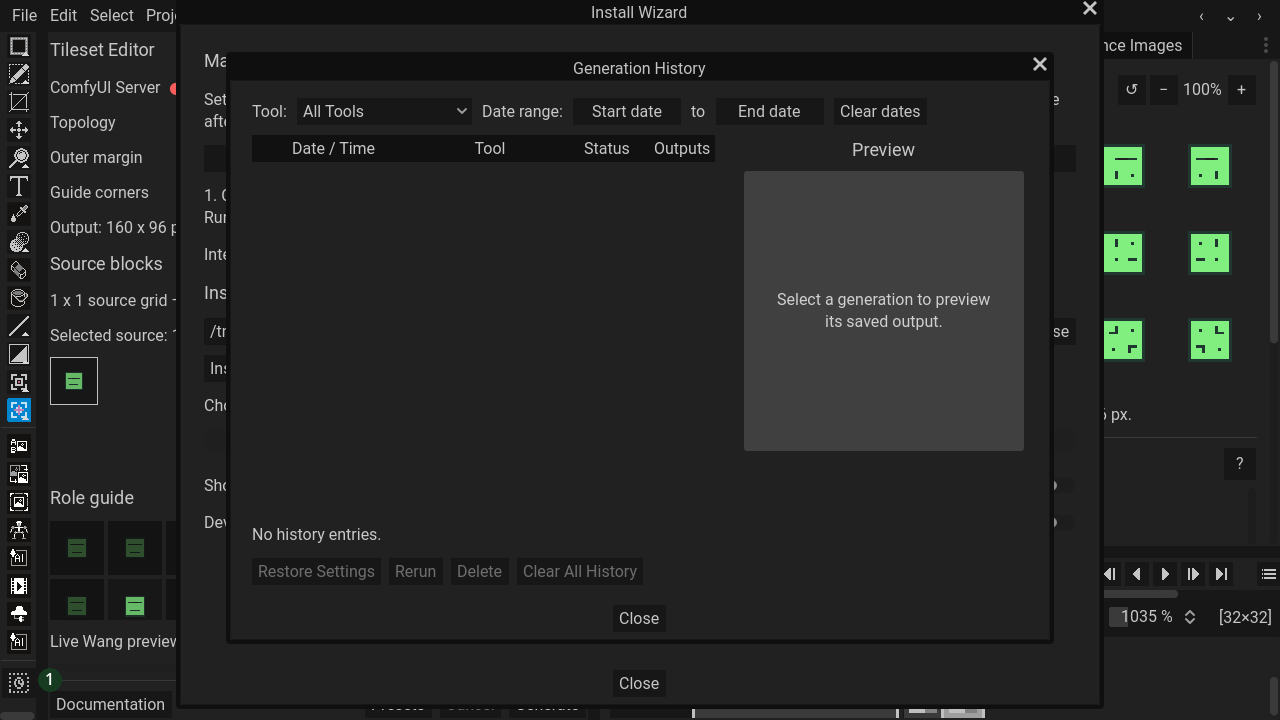 Generation History opens from the history launcher.
Choose outputs and destination
Inspect thumbnails and the large preview. Keep the desired outputs/frames. Layer adds output as a layer; Replace Layer targets the selected layer; Frames imports frame output; New Sprite creates a separate project. Some reference outputs also offer ControlNet as a destination. Confirm the active project before Send.
Output-size policy
Crop to canvas (1:1) keeps canvas size and crops centered full-scale output. Scale to fit (nearest) fits within the canvas with possible transparent margins. Grow canvas to output (1:1) enlarges the canvas to preserve output scale. Require matching canvas refuses mismatched dimensions. Choose explicitly to avoid confusing blank/cropped results.
Animation review
Play the result, inspect frame order/timing, and keep only useful frames. Animate Anything’s frame route creates an AI Animation layer starting at timeline frame 1, preserving output timing and adding frames as needed. Review loop continuity and layer visibility after import.
History and presets
History stores reviewed runs/settings and can reopen results. Its limit is configurable (currently 1–50 entries, default 20); it is not a permanent artwork archive. Save important outputs/projects separately. Workflow presets reuse configuration rather than replacing model installation. Remember-selected-images settings control whether image choices persist.
Queue, cancel, retry
Inspect the workflow queue before removing/canceling work. Cancel can interrupt processing but cannot undo an already completed provider request or applied canvas edit. Review failure status before retrying. A fixed seed does not guarantee identical results across changed backends/models.
Recover after import
Use Undo for an unwanted import, check layer visibility and active frame, and reopen the output from history where available. Save projects independently of history cleanup.