Grimoire Standalone
Shading brush
Adjust existing colors with a brush using Simple Shading, Hue Shifting, or palette-based Color Replace. Runs locally.
Adjust existing colors with a brush using Simple Shading, Hue Shifting, or palette-based Color Replace. Runs locally.
Find and open this tool
On the left tool rail, click the Draw group button (small corner chevron), then choose Shading Tool from its list. The group icon changes to its last-used member, so use the name in the list rather than guessing from its current picture.

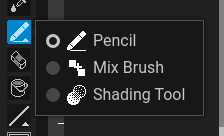 Open Draw and choose Shading Tool.
Expected: this tool is active and its options appear above the canvas. Select a visible, unlocked pixel layer before painting.
 Options for Shading Tool appear above the canvas.
Shade a sprite
- Choose Shading from Draw.
- Select Lighten or Darken and a shading mode.
- Set the visible amounts and paint over a small area.
- Review the color ramp and Undo if the change is too strong.
Modes
Simple Shading adjusts brightness. Hue Shifting changes hue, saturation, and value with the displayed controls and limits. Color Replace uses palette-based color replacement; select a palette color when the UI requests it and inspect the ramp controls before painting.
Preserving pixel art
Use small changes to retain deliberate clusters. Palette-aware replacement is useful when the palette already contains the intended shadow/highlight ramp. Ordinary lightening can create colors outside that ramp on non-indexed artwork.
Common problems
Color Replace needs a valid palette choice. A constrained selection or alpha lock can restrict the stroke. Repeated strokes can produce larger changes than a single pass; compare after each pass.