Grimoire Standalone
Mix Brush
Mix the selected pigment into existing pixels and optionally pick up pigment as you paint. Runs locally and uses the shared drawing-brush controls.
Mix the selected pigment into existing pixels and optionally pick up pigment as you paint. Runs locally and uses the shared drawing-brush controls.
Find and open this tool
On the left tool rail, click the Draw group button (small corner chevron), then choose Mix Brush from its list. The group icon changes to its last-used member, so use the name in the list rather than guessing from its current picture.

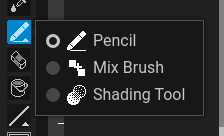 Open Draw and choose Mix Brush.
Expected: this tool is active and its options appear above the canvas. Select a visible, unlocked pixel layer before painting.
 Options for Mix Brush appear above the canvas.
Blend a color patch
- Choose Mix Brush from Draw. Pick a foreground color and brush tip.
- Start with Mix 50%, Pickup 0%, and full opacity to compare a simple blend.
- Paint a short stroke over existing colors.
- Raise Pickup to carry sampled destination pigment through the stroke.
- Enable Palette Lock if the result must stay within the active palette.
Controls
Mix controls the pigment contribution per destination pixel. Pickup controls how much destination pigment the brush carries forward. Opacity scales the effective mixing strength; 100% lets covered pixels receive the full Mix amount. Palette Lock snaps mixed colors to the active palette; indexed images use their own palette.
Expected result
Mixing is pigment-based, so overlapping colors can behave differently from simple RGB blending. Pickup makes a stroke depend on the pixels it crosses. For repeatable comparisons, use short strokes over the same saved source and change one control at a time.
Common problems
Too little change: inspect Mix and opacity. Muddy or drifting colors: reduce Pickup/Mix or enable Palette Lock. An empty palette cannot provide useful palette snapping. Undo before comparing another configuration.