Grimoire Standalone
Smart selection and background removal
These tools isolate image regions or remove backgrounds. They use model-dependent capabilities and should be checked against the current setup.
These tools isolate image regions or remove backgrounds. They use model-dependent capabilities and should be checked against the current setup.
Smart Select
Click Color and Paint Selection on the left rail → Smart Select. It uses a runtime and selection model to find object boundaries and mark eligible pixels without changing the image. Configure the visible algorithm controls, request a selection, and review candidate masks in the Smart Selection panel. Selecting a candidate applies its mask to the canvas selection. Refine it before transforming, healing, or inpainting.
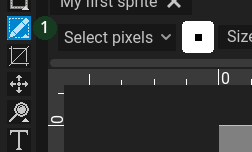 Choose Smart Select by name in the Color and Paint Selection group.
Background Removal
Click Image Processing → Background Removal. This tool removes the background by changing transparency. Choose its threshold and run Remove Background. Review fine edges and alpha before accepting/importing the result. Threshold changes mask decisions; it is not a guarantee of perfect hair, translucent edges, or clean pixel clusters.
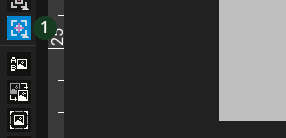 Choose Background Removal in Image Processing.
Requirements and recovery
Install the requested Smart Selection/background-removal pack and required runtime nodes, then refresh models. If no usable mask returns, verify the source and model status, adjust settings, or draw a selection manually.
Selections versus image changes
A selection identifies eligible pixels; it does not itself delete the background. Clear or refine selections when a later brush appears constrained unexpectedly.