Grimoire Standalone
Exact Clone
Copy sampled pixels exactly without contextual palette remapping. Runs locally on editable pixel layers.
Copy sampled pixels exactly without contextual palette remapping. Runs locally on editable pixel layers.
Find and open this tool
On the left tool rail, click the Healing and Fill group button (small corner chevron), then choose Exact Clone from its list. The group icon changes to its last-used member, so use the name in the list rather than guessing from its current picture.

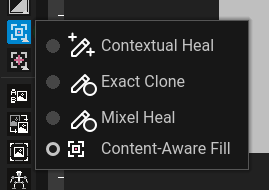 Open Healing and Fill and choose Exact Clone.
Expected: this tool is active and its options appear above the canvas. Select a visible, unlocked pixel layer before painting.
 Options for Exact Clone appear above the canvas.
Clone a detail
- Choose Exact Clone from Healing and Fill.
- Ctrl-click a source point (Command-click on macOS).
- Set brush shape/size and any source flips.
- Drag to copy into the destination. The stroke uses a fixed source-to-destination offset.
- Inspect the copied edge and Undo unwanted strokes.
Controls and restrictions
Circle/Square controls the footprint. Flip X/Flip Y mirror the source. Protect Silhouette restricts changes around the destination silhouette. Changing cels clears the sampled source; resample after changing layers/frames. Selection and alpha restrictions can limit where copying applies.
When to use it
Use Exact Clone for repeated texture, matching details, or repairing a region from a known clean patch. Choose a clean source whose colors should be copied unchanged.
Common problems
Misaligned features need a better source anchor or a shorter stroke. Unexpected colors are copied from the source by design. A missing source or unsupported layer blocks painting.