Grimoire Standalone
In / Outpaint
Regenerate transparent or selected pixels while using the surrounding image as context.
Regenerate transparent or selected pixels while using the surrounding image as context.
Find and open this tool
Click In / Outpaint in the left AI rail or the AI tab on the right.

Replace an area
- Erase the content you want to replace to full transparency (alpha 0), or select the area with a marquee tool.
- Open In / Outpaint. Enable Include current selection when using a selection. Transparent pixels are included automatically.
- Describe the replacement and generate.
- Review the returned result in the AI Tools preview, including its boundaries, before importing it.
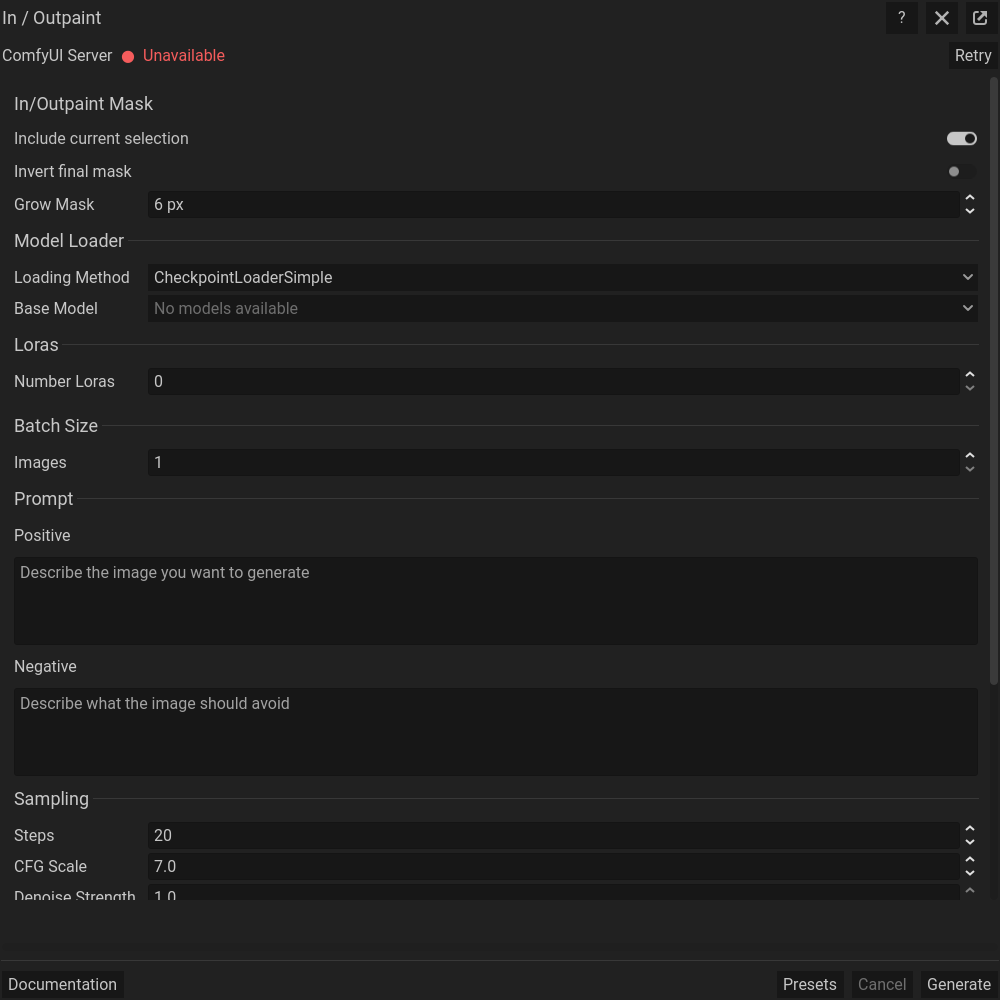 In / Outpaint: actual floating dialog. Scroll within the dialog for more settings.
Extend artwork
Enlarge the canvas to leave transparent space around the existing artwork. Open In / Outpaint, describe how the scene should continue, and generate. Review the returned result before importing it.
Control changes
Include current selection adds selected pixels to the transparent area being regenerated. Leave Invert final mask off for the usual transparency or selection workflow. Grow Mask expands the affected area to help blend boundaries; use 0 when you do not want that expansion. Use the displayed denoise and sampling controls with a compatible model. Inspect seams, transparency, and output dimensions. If you need a strictly local pixel copy rather than a generated interpretation, use Exact Clone.
Pixel art postprocessing
At the bottom of the workflow, enable Pixelate to simplify output with Standard Pixelate or Neural Pixelate. Palette Reduction limits the colors; choose the palette source where available. Enable Keep Original Output to compare the raw and processed versions before Send. Inspect small details and edges after processing. See Pixel art utilities for the processing methods.
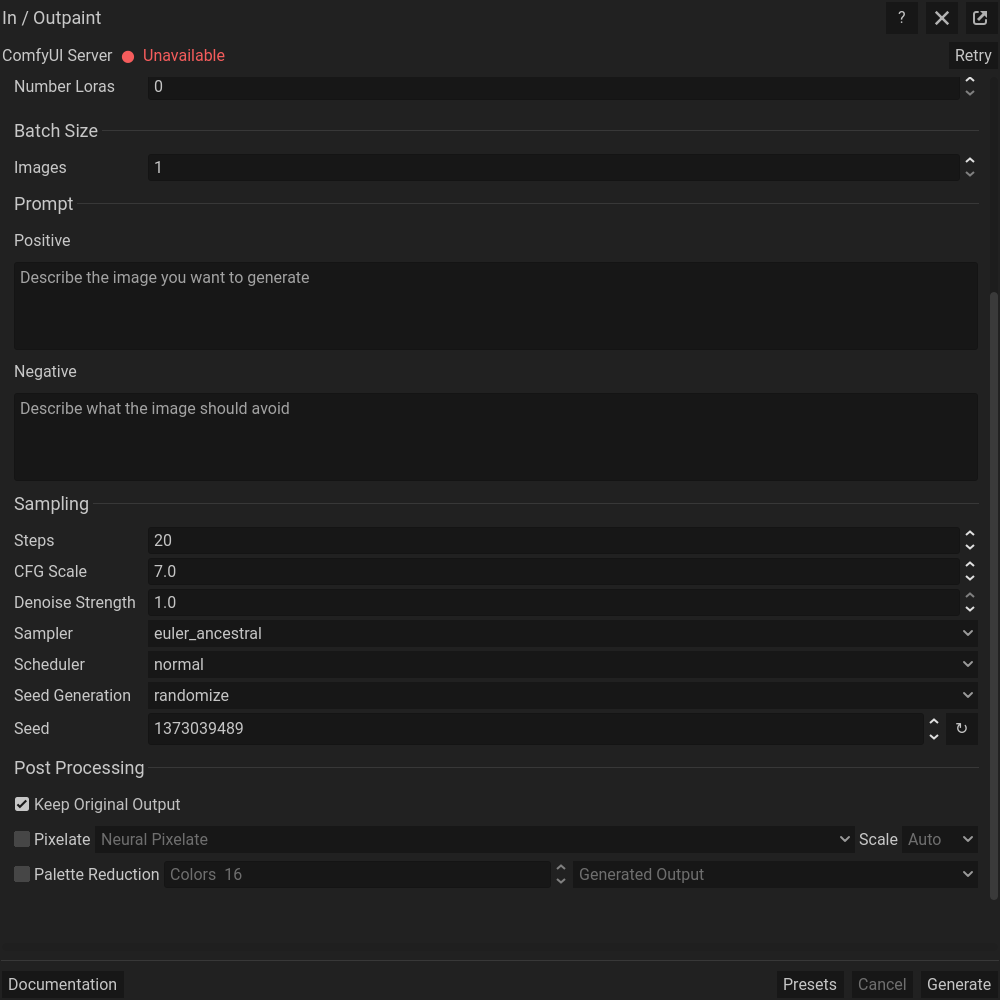 The same dialog scrolled down to its remaining settings; generation controls stay at the bottom.
Common problems
If the wrong area changes, check canvas transparency, the active selection, Include current selection, Invert final mask, and Grow Mask. Compare the complete returned result before applying it. If there is no transparent or selected area, prepare one in the editor before generating.