Grimoire Standalone
Animate Anything
Generate motion from the canvas, a reference image, or a file. Install the MiniMax H3 pack appropriate to the available backend and select a valid source.
Generate motion from the canvas, a reference image, or a file. Install the MiniMax H3 pack appropriate to the available backend and select a valid source.
Find and open this tool
Click Animate Anything in the left AI rail or the AI tab on the right.

Animate a sprite
- Choose Animate Anything and confirm the source preview.
- Describe Reference (appearance), Motion (action), and Camera (framing). For an idle loop, ask for a centered character, restrained movement, fixed camera, and unchanged background.
- Use the prompt builder/motion library or save a custom prompt for repeated tasks.
- Set the visible dimensions, timing, model, and sampling controls; generate.
- Play the preview, keep useful frames, and Send them as Frames.
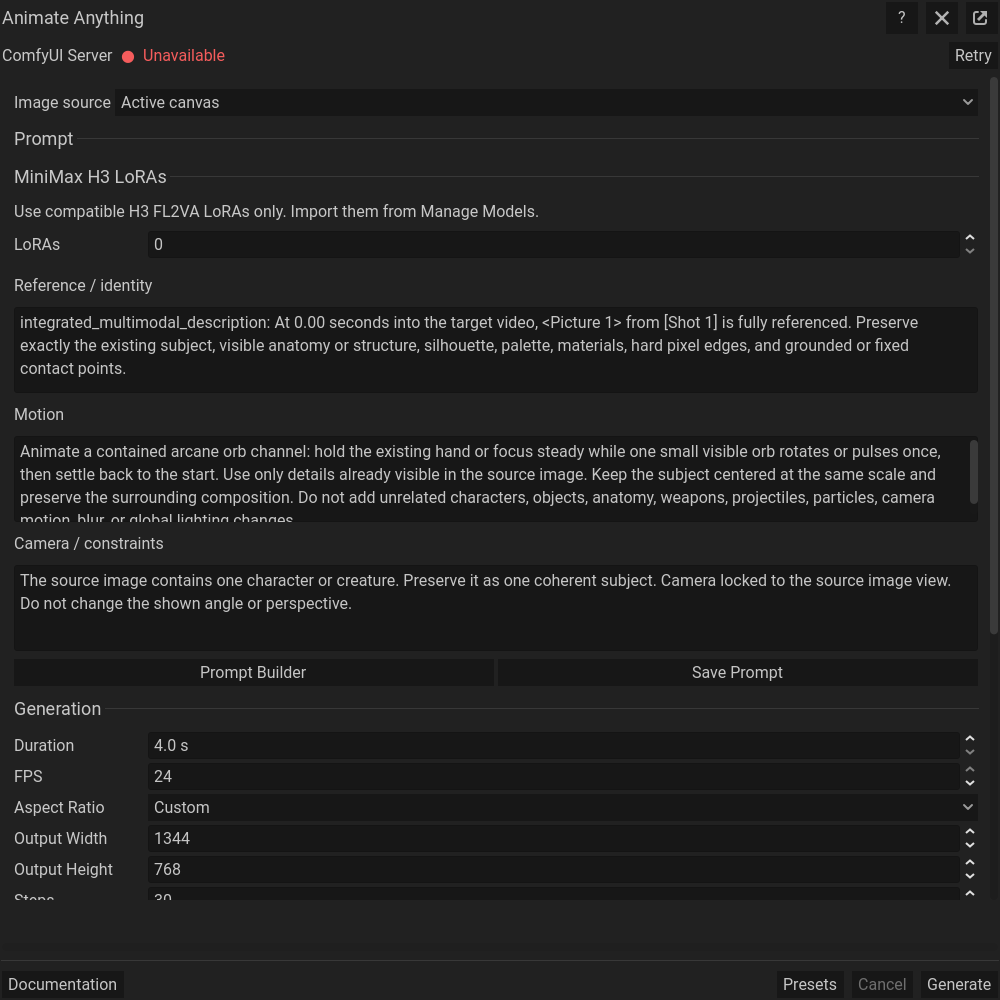 Animate Anything with the Arcane orb channel example applied from Prompt Builder to Reference / identity, Motion, and Camera / constraints.
Preparation and restoration
At the bottom of the workflow, Pixelate and Palette Reduction can prepare the master before generation and restore generated frames afterward. Pixelation simplifies pixel structure; palette reduction limits colors. Choose one palette source for consistency across frames. A locked session palette can also be used by palette utilities. Keep raw generated frames in history when you want to compare restoration choices.
Review and import
Review motion, pixel edges, identity, unwanted camera movement, and loop boundaries. Select the frames to keep. Animate Anything frame import creates an AI Animation layer with consecutive cels beginning at timeline frame 1 and adds project frames when needed; existing project layers remain available. Check the selected size policy before Send.
Backends and limitations
Use the backend supported by your installed runtime/model pack; native and MLX have different requirements. Larger video dimensions and longer outputs need more resources. Prompts do not guarantee seamless loops or identical frame palettes; manual cleanup can still be needed.
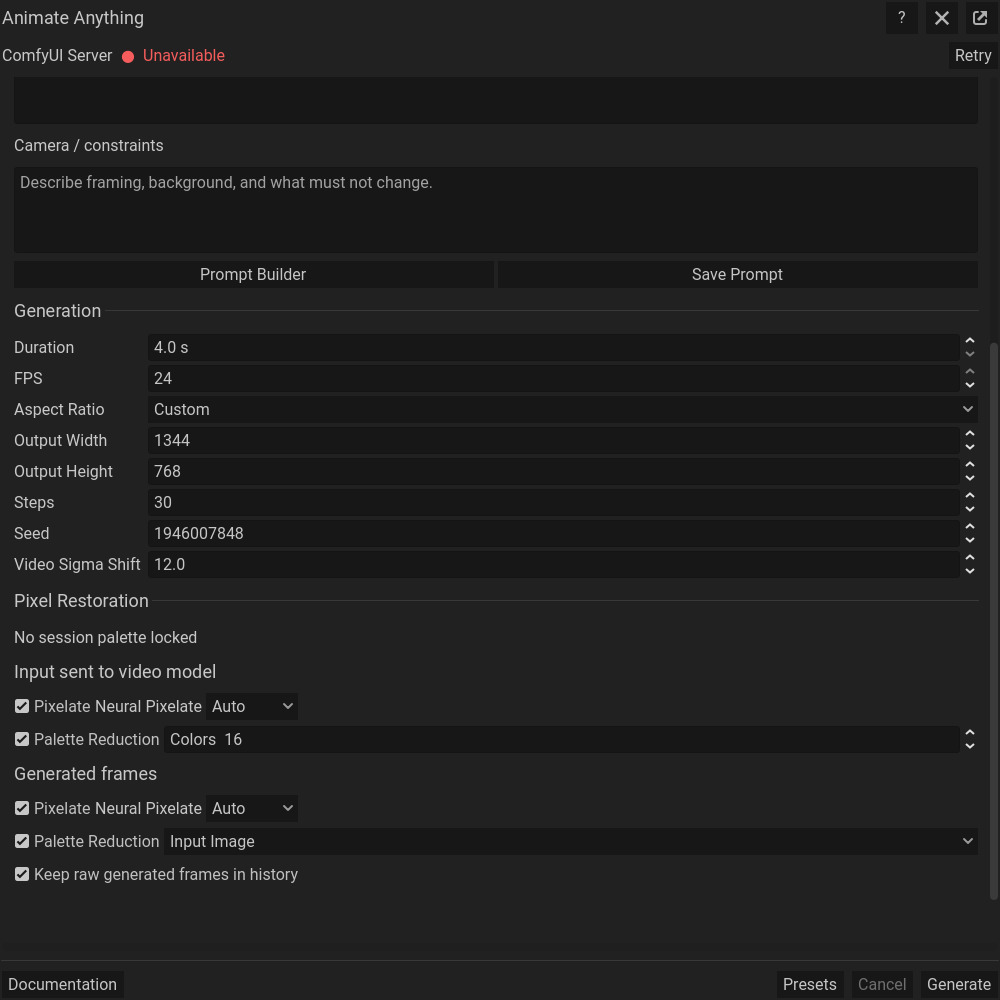 The same dialog scrolled down to its remaining settings; generation controls stay at the bottom.
Common problems
Missing packs: open model management. Flicker: compare palette matching and restoration settings. Blank-looking imports: check frame selection, layer visibility, size policy, and whether an opaque layer covers the imported animation.