Grimoire Standalone
Content-Aware Fill brush
Paint an area to repair, then generate a replacement using surrounding content.
Paint an area to repair, then generate a replacement using surrounding content.
Find and open this tool
On the left tool rail, click the Healing and Fill group button (small corner chevron), then choose Content-Aware Fill from its list. The group icon changes to its last-used member, so use the name in the list rather than guessing from its current picture.

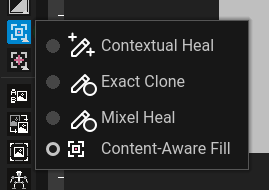 Open Healing and Fill and choose Content-Aware Fill.
Expected: this tool is active and its options appear above the canvas. Select a visible, unlocked pixel layer before painting.
 Options for Content-Aware Fill appear above the canvas.
Paint and fill
- Choose Content-Aware Fill from Healing and Fill on an editable pixel layer.
- Set brush size and shape, then paint the unwanted area. The colored overlay is a repair mask, not painted artwork.
- Use Erase Mask or Clear Mask to correct coverage, or use Fill Selection for an existing selection.
- Choose repair settings, run the fill, and review the preview where the dialog route is used. Apply only after checking the boundary.
Repair controls
Overlay color changes mask visibility. Fast cleanup and Full repair (Neural) use different restoration paths. Neural scale controls pixel restoration. Edge bleed expands the repair boundary; use it carefully around narrow outlines. Palette Lock helps keep repaired output aligned to the source palette.
Expected result
The targeted area is replaced with generated/repaired pixels. This can remove an object or reconstruct missing texture, but may invent details. Use Exact Clone when the replacement should reproduce a known source exactly.
Common problems
No valid mask or non-editable layer: correct the editor state. Unavailable server/model/Pixel-Art Fixer: complete setup. Boundary damage: reduce the mask/edge bleed or use a more precise manual repair. Use Undo to revert an applied fill.