Grimoire Standalone
Mixel Heal
Clean supported intermediate-color fringes along pixel art boundaries. This local analyzer uses nearby original colors; it does not require a model download or an AI server.
Clean supported intermediate-color fringes along pixel art boundaries. This local analyzer uses nearby original colors; it does not require a model download or an AI server.
Find and open this tool
On the left tool rail, click the Healing and Fill group button (small corner chevron), then choose Mixel Heal from its list. The group icon changes to its last-used member, so use the name in the list rather than guessing from its current picture.

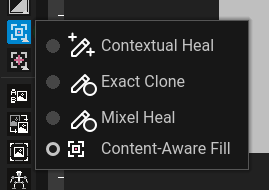 Open Healing and Fill and choose Mixel Heal.
Expected: this tool is active and its options appear above the canvas. Select a visible, unlocked pixel layer before painting.
 Options for Mixel Heal appear above the canvas.
When to use it
Use Mixel Heal to remove unwanted intermediate-color fringes left by scaling or generated-image cleanup. It suits narrow boundaries between existing pixel-art colors and needs no sampled source. Review intentional thin details before applying wider cleanup.
Clean a fringe
- Choose Mixel Heal from Healing and Fill.
- Start with Balanced sensitivity and a footprint covering the unwanted fringe.
- Paint along the fringe. The overlay shows the eligible region.
- Release to analyze and apply cleanup as one undoable action.
- Compare the boundary and Undo if needed. Cancel pending analysis when you do not want it applied.
Sensitivity and footprint
Brush size determines coverage. Conservative targets fringe widths up to 1 image pixel, Balanced up to 2, and Aggressive up to 4. Sensitivity affects analysis rather than simply enlarging the brush.
What is preserved
Replacements come from nearby original reference pixels; no averaged colors or new palette entries are created. Transparent and partially transparent pixels are excluded. Changes stay inside the painted eligible area and selection restrictions. Small detached specks qualify only near a confirmed fringe.
Limitations
Broad bands, weak boundaries, dark near-reference shades, ambiguous junctions, and intentional thin details may remain untouched. An unchanged stroke can be a valid result when the tool cannot confirm a fringe. Start with a narrow area and compare before increasing sensitivity.