Grimoire Standalone
Image to Image
Transform an existing image while keeping some of its composition.
Transform an existing image while keeping some of its composition.
Find and open this tool
Click Image to Image in the left AI rail or the AI tab on the right.

Transform a sprite
- Choose Image to Image. Select the canvas, a reference image, or a file using the source picker.
- Inspect the source preview. Describe the desired transformation.
- Choose matching model components, dimensions, and denoise.
- Generate and compare against the source before importing.
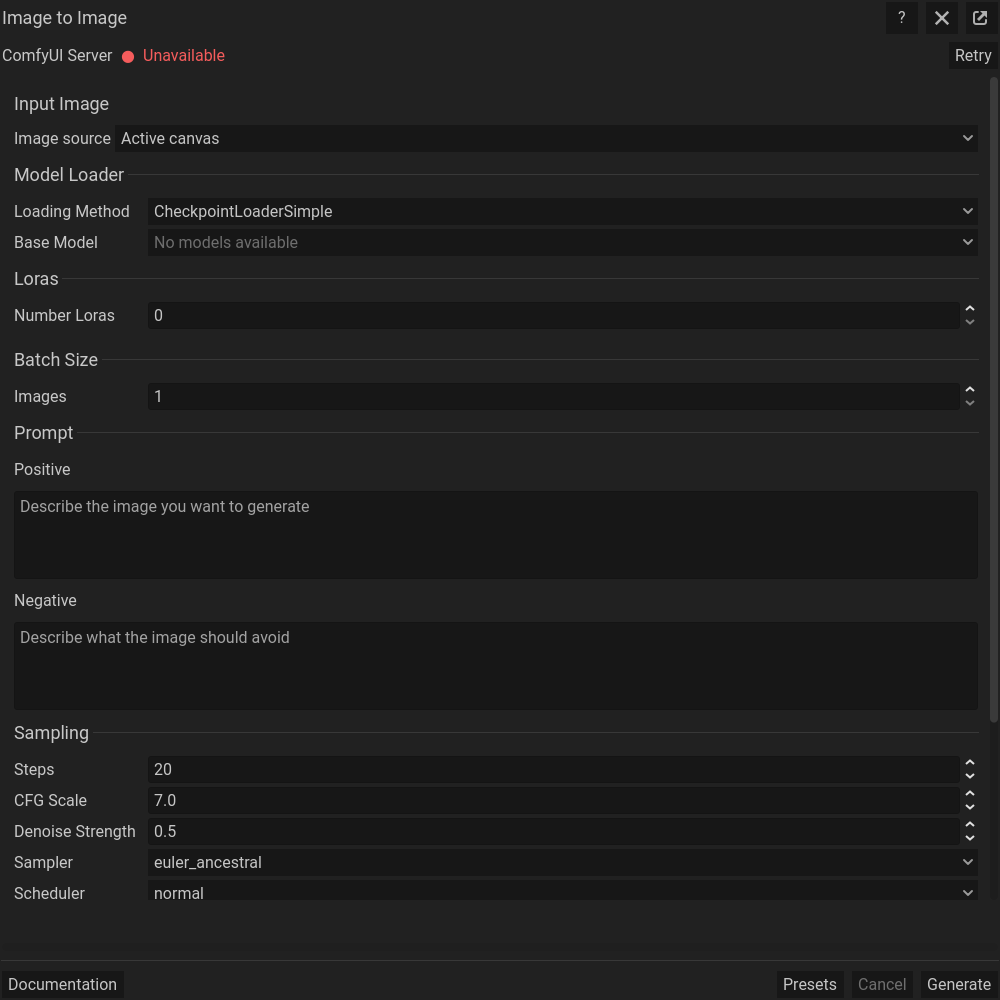 Image to Image: actual floating dialog. Scroll within the dialog for more settings.
Denoise and preservation
Lower denoise usually retains more source structure; higher denoise permits larger changes. Start with a conservative value for cleanup. A prompt cannot guarantee exact preservation of outlines, colors, or identity. Use AI Edit for instruction-driven changes, or cloning/healing for precise local work.
Source and output size
A reference file is not necessarily the active cel. Confirm which source mode is selected before every run. Generation dimensions govern the output; import size policies govern how it enters the project.
Pixel art postprocessing
At the bottom of the workflow, enable Pixelate to simplify output with Standard Pixelate or Neural Pixelate. Palette Reduction limits the colors; choose the palette source where available. Enable Keep Original Output to compare the raw and processed versions before Send. Inspect small details and edges after processing. See Pixel art utilities for the processing methods.
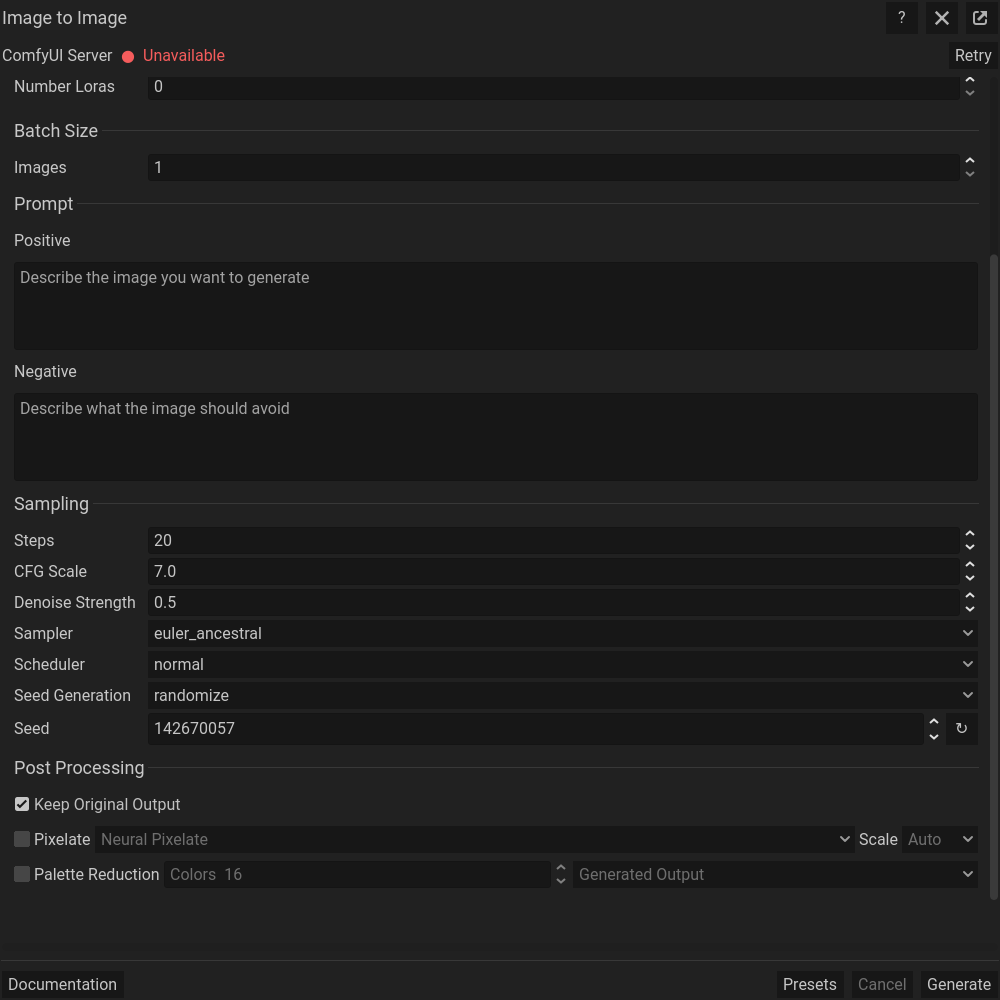 The same dialog scrolled down to its remaining settings; generation controls stay at the bottom.
Common problems
An unexpected image often means the source mode is wrong. Excessive changes suggest too much denoise or strong conditioning. A small sprite may need generation at a larger model-friendly resolution followed by deliberate pixelation/resizing.